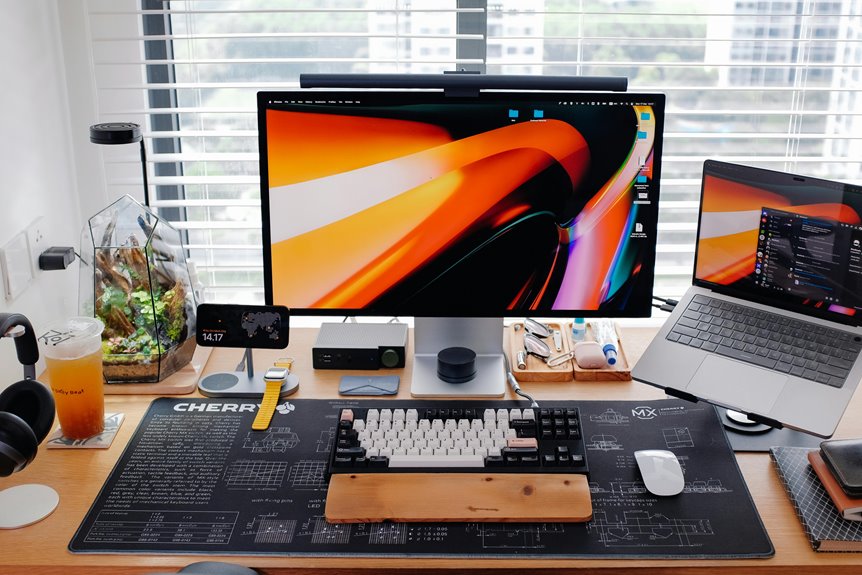
Trackball mice are great for CAD work from home due to their precision and ergonomic design. They let you control your cursor with minimal wrist movement, reducing strain during long sessions. Plus, their customizable buttons streamline your workflow, allowing for quick access to essential functions. Though there's an adjustment period, many users report improved comfort and productivity. Stick around to explore more about the benefits and tips for making the switch.
Key Takeaways
- Trackball mice provide enhanced precision and control, crucial for detailed CAD design work from home.
- Their ergonomic design minimizes wrist strain, promoting comfort during long hours of use.
- Programmable buttons allow quick access to essential functions, streamlining workflow in complex CAD software.
- The stationary design requires less desk space, making it ideal for home office setups.
- Users report improved productivity and reduced fatigue, making trackball mice an effective choice for remote CAD work.
Understanding Trackball Mice: How They Work
Understanding how trackball mice work can significantly enhance your computer-aided design (CAD) experience.
Unlike traditional mice, trackball mice feature a ball on top that you manipulate with your fingers, allowing for precise movements without needing to move the entire device. When you roll the ball, sensors detect the movement and translate it into cursor actions on your screen.
This stationary design can reduce wrist strain, making it a comfortable choice during long design sessions. You can customize button functions for shortcuts, streamlining your workflow.
As you get used to the trackball's unique mechanics, you'll find it offers greater control and accuracy, particularly when navigating complex CAD interfaces and intricate designs.
Benefits of Trackball Mice for CAD Professionals
Trackball mice offer several advantages that can elevate your CAD work. By switching to a trackball, you can enhance your productivity and comfort while working on intricate designs.
Here are some key benefits:
- Precision Control: Trackballs provide finer control for detailed design work.
- Reduced Strain: You won't have to move your arm as much, minimizing wrist strain.
- Space-Saving: They require less desk space since you don't need to move the mouse around.
- Customizable Buttons: Many trackball mice have programmable buttons for quick access to functions.
- Ergonomic Design: They often feature shapes that promote a natural hand position, increasing comfort during long hours.
Switching to a trackball could significantly improve your CAD experience.
Potential Drawbacks of Trackball Mice
While trackball mice offer unique advantages, they also come with some drawbacks you should consider.
You might find a learning curve as you adjust to the different movement dynamics, and space constraints could limit where you can comfortably use them.
Additionally, some users report challenges with precision control compared to traditional mice, which could impact your CAD work.
Learning Curve Challenges
Although trackball mice offer unique advantages for CAD work, they come with a significant learning curve that can be daunting for new users. Transitioning from a traditional mouse to a trackball requires time and practice.
You might find the following challenges when adapting:
- Precision Control: Mastering the ball's movement for fine-tuning designs can take time.
- Ergonomics Adjustment: Adjusting your grip and hand position may feel awkward at first.
- Button Mapping: Customizing buttons to suit your workflow can be confusing initially.
- Coordination Skills: Developing hand-eye coordination with the trackball can be tricky.
- Speed vs. Accuracy: Finding the balance between speed and accuracy can be challenging during initial use.
With patience and practice, you'll likely reap the benefits of this unique tool.
Space Constraints Issues
Space constraints can pose a significant challenge when using trackball mice, especially in smaller work areas.
You might find that the mouse takes up more space than a traditional mouse, as you need room for your hand to navigate the ball effectively.
If your desk is cluttered or limited, you may struggle to get comfortable while working on CAD designs.
Additionally, the trackball's design may require you to adjust your workspace setup, which can be inconvenient.
You'll need to ensure that the trackball's positioning allows for easy access and movement, potentially leading to further adjustments in your workspace.
Ultimately, if you're tight on space, a trackball mouse mightn't be the most practical option for your CAD needs.
Limited Precision Control
Precision is crucial in CAD work, and using a trackball mouse can present challenges in this area. While trackball mice offer unique benefits, they can also limit your control over fine movements.
You might find it harder to make precise adjustments, especially in detailed designs. Here are some potential drawbacks to consider:
- Difficulty in achieving fine control
- Inconsistent tracking sensitivity
- Steeper learning curve for beginners
- Limited customization options for precision settings
- Possible fatigue from wrist and finger positioning
If you're working on intricate designs, these limitations might hinder your workflow.
Weighing these factors against your specific needs will help you decide if a trackball mouse is right for your CAD tasks.
Comparison: Trackball Mice vs. Traditional Mice
When comparing trackball mice to traditional mice, you'll find distinct advantages and disadvantages that cater to different user preferences.
Trackball mice allow you to keep your hand stationary, which can be beneficial for precision tasks. They offer greater control over cursor movement without requiring extensive wrist motion.
On the other hand, traditional mice are often more familiar and might feel more intuitive for quick actions and gestures. They generally provide faster, more fluid movements, especially for expansive screen spaces.
Additionally, traditional mice come in various shapes and sizes, allowing for personal customization.
Ultimately, your choice will depend on your specific workflow, comfort, and the types of CAD work you engage in regularly.
Ergonomics and Comfort in CAD Design
While you focus on creating intricate designs in CAD, prioritizing ergonomics and comfort can significantly enhance your productivity and reduce the risk of strain injuries.
A well-designed workspace plays a crucial role in maintaining your well-being during long hours of work. Here are some key factors to consider:
- Wrist Support: Use a wrist rest to maintain neutral positioning.
- Chair Height: Adjust your chair to keep feet flat on the ground.
- Monitor Position: Position your screen at eye level to reduce neck strain.
- Breaks: Take regular breaks to stretch and rest your eyes.
- Mouse Choice: Opt for a trackball mouse for reduced wrist movement.
User Experiences: Testimonials From CAD Designers
As you explore trackball mice for your CAD work, you'll find that many designers rave about the enhanced precision and control they offer.
Comfort during those long design sessions is another major benefit, though some users mention the adaptation time needed to fully adjust.
Let's hear what your fellow CAD designers have to say about their experiences.
Enhanced Precision and Control
Although many CAD designers initially hesitate to switch to trackball mice, they quickly discover enhanced precision and control that transforms their workflow.
Users often report a significant improvement in their design accuracy and efficiency. You'll find that the unique design allows for fine adjustments without the need for large arm movements, making intricate tasks easier than ever.
Here are some benefits CAD designers have shared:
- Increased accuracy for detailed designs
- Reduced hand strain during precise movements
- Faster navigation through complex software
- Customizable buttons for quick access to tools
- Stability on uneven surfaces, allowing for consistent control
With these advantages, it's clear why so many CAD professionals embrace trackball mice.
Comfort During Long Sessions
Many CAD designers find that trackball mice not only enhance precision but also significantly improve comfort during long design sessions.
You'll likely appreciate how the stationary design reduces wrist strain, allowing you to work for hours without discomfort. Users often share that the ergonomic shape of trackball mice fits their hand well, promoting a more natural grip.
This means less fatigue and increased focus on intricate tasks. One designer noted, "Switching to a trackball was a game-changer; I can work longer without feeling sore."
Another mentioned that it allows for fluid movements while keeping their wrist in a relaxed position.
Adaptation Time Required
Transitioning to a trackball mouse can feel daunting at first, but most CAD designers find the adjustment period worthwhile.
Initially, you might struggle with precision and hand movement. However, with regular use, your muscle memory adapts, leading to improved efficiency.
Here are some key points to consider during your adaptation:
- Familiarization: Spend time learning the controls and features.
- Practice: Engage in everyday tasks to build comfort.
- Patience: Allow yourself a few weeks to adjust fully.
- Adjust Settings: Tweak sensitivity to match your preferences.
- Feedback: Seek advice from experienced users for tips.
Embrace the change, and soon enough, you'll enjoy the benefits of a trackball mouse in your CAD workflow.
Making the Switch: Tips for Transitioning to Trackball Mice
If you've been using a traditional mouse for CAD work, switching to a trackball can feel daunting at first. To ease your transition, start by adjusting your hand position. Find a comfortable grip that allows your fingers to glide over the trackball smoothly.
Practice basic movements like scrolling and clicking to build muscle memory.
Next, customize your settings. Most trackballs let you adjust sensitivity and acceleration; tweak these to match your preferences.
Don't forget to incorporate shortcuts into your workflow. You can program buttons for frequently used commands, boosting your efficiency.
Lastly, give yourself time. It might take a few days to feel fully comfortable, but with practice, you'll likely appreciate the precision and control that trackball mice offer for CAD tasks.
Frequently Asked Questions
Can Trackball Mice Improve Productivity in CAD Design?
Trackball mice can significantly improve your productivity in CAD design. They allow for precise control and reduce hand movement, which can enhance your workflow and comfort during long design sessions. You'll likely notice the difference.
What Are the Best Trackball Mice for CAD Work?
When considering trackball mice for CAD work, look for options like the Logitech MX Ergo or the Kensington Expert. These models offer precision, comfort, and customizable buttons to enhance your design efficiency and overall experience.
Do Trackball Mice Require Special Drivers for CAD Software?
Trackball mice typically don't require special drivers for CAD software. Most standard operating systems recognize them, allowing you to use basic functions right away. However, you might find additional software beneficial for customizing controls.
How Do I Clean and Maintain a Trackball Mouse?
To clean and maintain your trackball mouse, regularly remove the ball and clean the interior with a soft cloth. Wipe the exterior with a damp cloth, and ensure the sensors are free from dust and debris.
Are Trackball Mice Suitable for Left-Handed Users?
Trackball mice can be suitable for left-handed users, but options may be limited. You'll want to look for models specifically designed for left-handed use to ensure comfort and ease during your tasks.