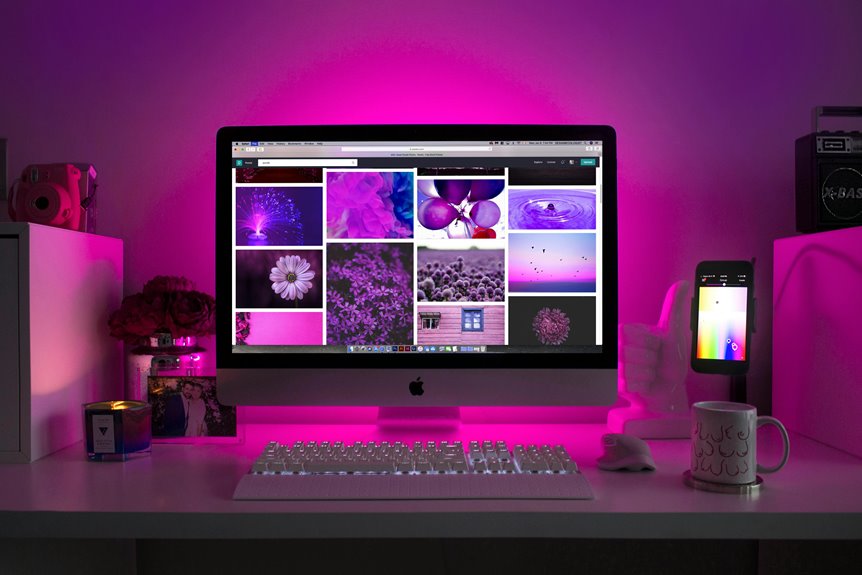
Fine-tuning your trackball mouse for design work can greatly enhance your efficiency. Start by adjusting the sensitivity and speed settings to match your precision needs. Customize the button functions to streamline your workflow by mapping essential software commands. Clean your mouse regularly for optimal performance and ensure it feels comfortable during long sessions. Don't forget to consider ergonomics for reduced strain. There's much more to explore on how to maximize your trackball mouse for design tasks.
Key Takeaways
- Adjust DPI settings to match your design needs for precise control over intricate details in your work.
- Customize button functions for essential commands like zooming and tool switching to enhance workflow efficiency.
- Ensure ergonomic comfort by selecting a trackball shape and size that fits your hand for extended use.
- Regularly clean the trackball and buttons to maintain smooth performance and prevent interruptions during design tasks.
- Experiment with different settings and features to find the optimal configuration that suits your design style.
Understanding the Benefits of a Trackball Mouse
When you consider the demands of design work, a trackball mouse often stands out for its unique advantages.
Its stationary design allows you to keep your hand in a comfortable position, reducing strain during long hours. You can easily manipulate intricate designs with precision, thanks to the fine control offered by the trackball's movement. This allows for smoother navigation through complex software and enhances your workflow.
Additionally, trackball mice require less desk space compared to traditional mice, making them ideal for crowded workstations. The customizable buttons let you streamline your most-used commands, boosting your efficiency.
Choosing the Right Trackball Mouse for Your Needs
When choosing a trackball mouse, you need to focus on ergonomics and comfort to ensure your hand feels good during long design sessions.
It's also crucial to consider the precision and sensitivity of the mouse, as these factors can significantly impact your workflow.
Finding the right balance will enhance your overall design experience.
Ergonomics and Comfort
Selecting the right trackball mouse can significantly enhance your design workflow by promoting better ergonomics and comfort.
When choosing, consider the shape and size of the mouse to fit your hand comfortably. A well-contoured design reduces strain on your wrist and fingers, making extended use more enjoyable.
Look for a mouse with adjustable height and tilt to customize your setup according to your preference. Additionally, check for features like soft-touch materials or padded grips, which can further enhance comfort during long design sessions.
You'll want to ensure that you can easily reach all buttons without contorting your hand. Prioritizing ergonomics not only boosts your productivity but also helps prevent discomfort and fatigue over time.
Precision and Sensitivity
To achieve optimal performance in your design work, focusing on precision and sensitivity in a trackball mouse is essential. Selecting the right model can significantly enhance your workflow.
Here are three key factors to consider:
- DPI Settings: Look for a trackball mouse with adjustable DPI (dots per inch) settings. Higher DPI allows for more precise movements, which is crucial for detailed design tasks.
- Ball Size: The size of the trackball affects control. A larger ball can provide better tracking and smoother movements, making it easier to navigate complex designs.
- Customizable Buttons: Choose a mouse with programmable buttons. This feature lets you assign shortcuts to your most-used tools, improving efficiency and precision in your design processes.
Adjusting Sensitivity and Speed Settings
While using a trackball mouse for design work, adjusting sensitivity and speed settings can significantly enhance your workflow.
You'll want to find the right balance that suits your design style. Start by accessing your mouse settings through your computer's control panel or settings app. Gradually increase or decrease the sensitivity until you feel comfortable, ensuring precise control over your movements.
Experiment with the speed settings, too; a faster speed can help cover larger areas quickly, while slower settings allow for fine detail work.
Don't hesitate to make adjustments as you switch between different design tasks. Regularly fine-tuning these settings will help optimize your efficiency and accuracy, making your design process smoother and more enjoyable.
Customizing Button Functions for Design Software
Customizing the button functions on your trackball mouse can significantly enhance your design workflow.
You can map essential software functions to specific buttons, making your tasks more efficient.
Plus, integrating shortcuts and exploring software-specific options can tailor your setup to fit your unique style.
Mapping Functions to Buttons
Mapping functions to buttons on your trackball mouse can significantly enhance your efficiency in design work.
By customizing button functions, you can streamline your workflow and reduce the time spent on repetitive tasks. Here are three essential mappings to consider:
- Zoom In/Out: Assign one button to zoom in and another to zoom out, allowing you to quickly adjust your view without fumbling with keyboard shortcuts.
- Undo/Redo: Map a button for undoing and another for redoing actions, so you can easily correct mistakes and refine your designs on the fly.
- Tool Switching: Designate a button for switching between frequently used tools, making it seamless to access what you need without interrupting your creative flow.
With these customizations, you'll work smarter and faster!
Shortcut Integration Techniques
Enhancing your trackball mouse setup goes beyond just mapping functions to buttons; integrating keyboard shortcuts can take your design efficiency to the next level.
Start by identifying frequently used commands in your design software and assign them to the extra buttons on your trackball. For instance, if you often use the Undo or Redo function, mapping these to easily accessible buttons can save you time and streamline your workflow.
Consider creating a layout that aligns with your design process, grouping similar functions together. Don't hesitate to experiment with different setups until you find what feels comfortable and intuitive.
Software-Specific Customization Options
While you can assign generic functions to your trackball mouse, diving into software-specific customization options can significantly elevate your design experience.
Tailoring button functions to your preferred design software helps streamline your workflow and enhances productivity. Here are three key customization ideas:
- Adobe Photoshop: Assign a button for the "Brush Tool" or "Zoom In/Out" for quick access during editing sessions.
- Illustrator: Map a button to "Select All" or "Group" functions, allowing you to manipulate your designs effortlessly.
- Sketch: Customize a button to toggle between "Artboards" or "Symbols," making navigation in your projects much smoother.
These adjustments can transform the way you interact with your design tools, making your work more efficient and enjoyable.
Cleaning and Maintaining Your Trackball Mouse
To keep your trackball mouse functioning smoothly, regular cleaning and maintenance are essential. Dirt and grime can affect its performance, making precision work challenging. Start by removing the trackball and cleaning it with a soft cloth. Use compressed air to blow out debris from the casing. Don't forget to wipe down the buttons and the underside of the mouse.
Here's a quick reference table for your cleaning routine:
| Task | Frequency | Tools Needed |
|---|---|---|
| Remove trackball | Weekly | Soft cloth |
| Clean casing | Bi-weekly | Compressed air |
| Wipe buttons | Weekly | Isopropyl alcohol |
| Inspect for wear | Monthly | None |
| Replace ball | As needed | New trackball |
With consistent care, your trackball will enhance your design work for years.
Ergonomic Considerations for Comfortable Use
After ensuring your trackball mouse is clean and well-maintained, it's important to consider how you use it to avoid discomfort during long design sessions.
Ergonomics plays a crucial role in maintaining comfort and preventing strain. Here are three key considerations:
- Posture: Keep your back straight and shoulders relaxed. Your elbows should be at a 90-degree angle while using the mouse.
- Wrist Position: Maintain a neutral wrist position. Use a wrist rest if necessary to prevent strain and keep your hand elevated.
- Mouse Placement: Position the trackball close to your body. This minimizes reaching and helps maintain a comfortable arm position.
Integrating Your Trackball Mouse Into Your Design Workflow
Integrating a trackball mouse into your design workflow can significantly enhance your efficiency and precision, especially when you adapt your techniques to leverage its unique capabilities. To get started, think about how you can assign functions to buttons and customize your settings. Here's a simple comparison to help you visualize the benefits:
| Feature | Traditional Mouse | Trackball Mouse |
|---|---|---|
| Hand Movement | Requires full arm movement | Minimal wrist movement |
| Precision Control | Less accurate for fine details | Greater accuracy for detailed work |
| Customization Options | Limited | Highly customizable |
Frequently Asked Questions
Can I Use a Trackball Mouse With Multiple Operating Systems?
Yes, you can use a trackball mouse with multiple operating systems. Most trackball mice are compatible with Windows, macOS, and Linux. Just ensure you have the necessary drivers installed for optimal performance across different platforms.
How Do I Fix a Sticky Trackball?
To fix a sticky trackball, remove the ball and clean both the ball and the housing with a soft cloth. Check for debris in the mechanism, and lubricate if necessary to ensure smooth movement.
Is a Trackball Mouse Suitable for Gaming?
A trackball mouse can be suitable for gaming, but it depends on your preferences. If you enjoy precision and don't mind the learning curve, give it a try; you might find it surprisingly effective!
Can a Trackball Mouse Help With Wrist Pain?
Yes, a trackball mouse can help with wrist pain. Its stationary design reduces wrist movement, promoting a more natural hand position. You'll likely experience less strain, making it a comfortable alternative for extended computer use.
What Is the Lifespan of a Trackball Mouse?
A trackball mouse typically lasts between five to seven years, depending on usage and maintenance. Keep it clean and handle it gently, and you'll maximize its lifespan for smoother navigation and comfort in your tasks.