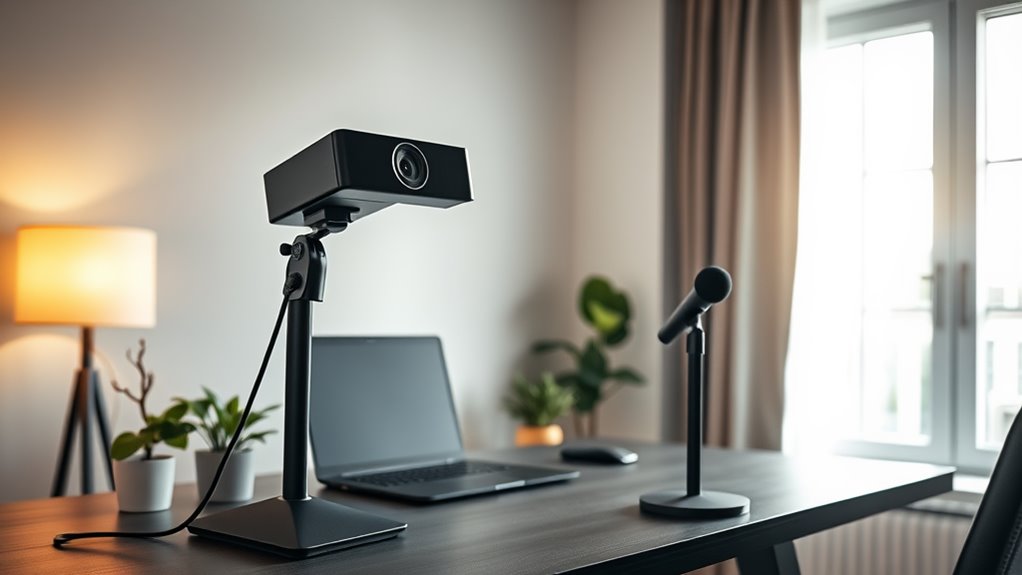
To host Zoom meetings like a pro, choose a neutral background and see to it that it's clutter-free. Position a light source in front of you for prime lighting, and secure a stable internet connection for a smooth experience. Test your audio and video equipment before the meeting. Dressing well and appearing professional sets the right tone. If you're looking to elevate your meetings even further, there are more tips and tricks to explore.
Key Takeaways
- Choose a neutral, clutter-free background or use a virtual background for a professional appearance.
- Position a light source in front of you to ensure proper lighting during the meeting.
- Ensure a stable internet connection by using a wired Ethernet cable for better reliability.
- Test audio and video equipment before the meeting to avoid technical issues.
- Use high-quality microphones and encourage video usage to enhance engagement and communication.
Preparing the Environment for Success

How can you set the stage for a successful Zoom meeting? Start by choosing a neutral background, like a plain wall, to avoid distractions. Clear any clutter or personal items from behind you, or consider using a virtual background for a polished look. Verify your lighting is prime by positioning a light source in front of you to enhance your visibility. A quiet environment is vital, so select a space that minimizes background noise. Dress professionally and maintain good grooming to project a professional image. Position your webcam directly in front of you for better visibility and remember to make eye contact with the camera to engage participants effectively. A stable internet connection plays a key role in creating a successful meeting atmosphere. Your environment plays a key role in creating a successful meeting atmosphere.
Technical Setup and Testing Essentials
Setting up your Zoom meeting effectively can make all the difference in ensuring a smooth experience. First, secure a stable internet connection, ideally with a wired Ethernet cable. Regularly update your Zoom app to access the latest features and security enhancements. Make sure your device is ready with the necessary files for sharing.
Choose appropriate display and audio equipment, connecting everything properly. Don't forget to power your devices to avoid interruptions. Test your audio and video setup ahead of time, using quality microphones and cameras. Adjust lighting for clarity and consider virtual backgrounds for professionalism. Additionally, remember that Zoom supports various platforms, so ensure compatibility with the devices your participants will use.
Finally, conduct a quick pre-meeting check to troubleshoot any issues, ensuring everything runs smoothly when it's time to connect.
Crafting an Effective Meeting Agenda

An effective meeting agenda can greatly enhance productivity and engagement. Start by defining clear objectives that align with your meeting's goals. These objectives guide your agenda items, keeping discussions focused and relevant for all participants. Additionally, meeting objectives must be specific and measurable to ensure clarity and alignment with the overall goals.
Prioritize agenda items based on their importance, and use action-oriented verbs to clarify what you aim to achieve. Assign realistic timeframes to each item, allowing time for questions and discussions.
Clearly define roles and responsibilities to guarantee everyone knows their tasks, whether it's leading discussions or taking notes. Finally, share the agenda in advance, allowing participants to prepare. By following these steps, you'll create a structured agenda that fosters engagement and accountability throughout your Zoom meeting.
Engaging Participants Throughout the Meeting
Engaging participants throughout your Zoom meeting is crucial for maintaining focus and fostering collaboration. Start by ensuring all your devices are charged and that you're using high-quality microphones and cameras. Conduct tech checks beforehand to prevent disruptions.
Incorporate interactive elements like polls and Q&A sessions to encourage real-time participation. Breakout rooms can facilitate smaller discussions, while gamification techniques adds excitement. Encourage attendees to use their video and assign meaningful roles to keep everyone involved.
Don't forget to invite guest speakers for fresh perspectives and use themed backgrounds for a fun touch. Additionally, utilize chat features for seamless communication and feedback, ensuring everyone feels included and engaged throughout the meeting.
Managing the Flow and Follow-Up Activities

Keeping participants engaged is only half the battle; managing the flow of the meeting and following up effectively guarantees that discussions lead to actionable outcomes. Start with a clear agenda to keep everyone focused. Use Zoom's Waiting Room feature to control entry and designate a co-host to manage technical issues. Regularly check in to make certain participants can hear and see you clearly, and encourage non-verbal feedback for engagement.
After the meeting, promptly share recordings and transcripts on a secure platform. Distribute materials and outline clear next steps. A post-meeting summary reinforces key points and action items. By maintaining structure during the meeting and following up thoroughly, you foster accountability and make certain progress on discussed topics.
Frequently Asked Questions
How Can I Improve My Internet Connection for Zoom Meetings?
To improve your internet connection for Zoom meetings, try using a wired connection, keep your devices close to the router, limit connected devices, and consider upgrading your router for better speed and stability.
What Should I Wear During a Professional Zoom Meeting?
For a professional Zoom meeting, wear solid colors like blue or black to convey trustworthiness. Choose properly fitting clothes, avoid loud patterns, and balance comfort with professionalism to maintain focus on your presentation.
How Do I Handle Technical Issues During a Live Meeting?
To handle technical issues during a live meeting, check your internet connection, restart the app if needed, and close unnecessary applications. Always have a backup plan ready, and keep contact info for participants handy.
Can I Use Virtual Backgrounds on Zoom?
Yes, you can use virtual backgrounds on Zoom. Just go to "Preferences," select "Background & Effects," and choose your desired background. Make sure your system meets the requirements for best performance and image clarity.
How Do I Manage Large Groups Effectively in Zoom Meetings?
To manage large groups effectively in Zoom meetings, use breakout rooms for focused discussions, mute participants upon entry, engage with polls, and assign roles. Keep an eye on time to maintain agenda flow.