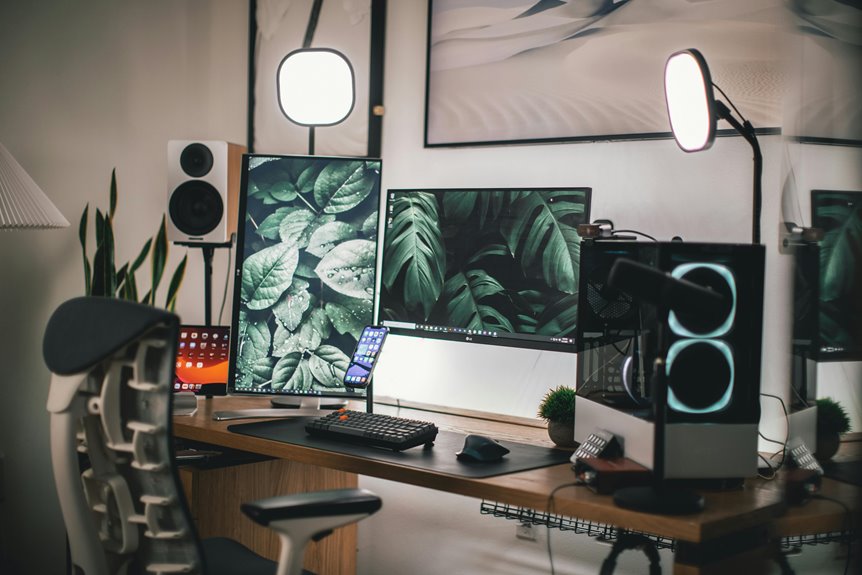
Your chair position can greatly influence how effectively you use your computer mouse. If it's too high or low, you might find your movements strained or awkward. Adjusting the height and angle of your chair can promote better arm positioning, reducing discomfort during long hours. Understanding these adjustments is key to improving not just your comfort but also your productivity. What specific changes can you make for a better setup?
Key Takeaways
- Proper chair height ensures feet are flat and knees are at a 90-degree angle, promoting better circulation and comfort during mouse use.
- A chair angle of 90 degrees maximizes comfort and efficiency, enhancing productivity while using the mouse.
- Correct arm positioning, with elbows at 90 degrees and close to the body, reduces shoulder and wrist strain during mouse operation.
- Keeping the mouse within easy reach minimizes stretching, preventing discomfort and enhancing the overall user experience.
- Regular adjustments and breaks are essential to maintain an ergonomic setup and prevent fatigue while using the mouse.
The Importance of Chair Height
When you adjust your chair height, you're not just making a minor tweak; you're setting yourself up for better posture and comfort during long hours at the computer.
The right height allows your feet to rest flat on the ground, promoting better blood circulation and reducing strain on your legs. When your knees are at a 90-degree angle, it helps maintain proper spinal alignment, which is essential for preventing back pain.
You'll also find it easier to keep your arms relaxed at your sides, which can enhance your overall productivity.
Optimal Chair Angle for Mouse Use
Adjusting your chair height is just the first step toward maximizing comfort and efficiency while using a computer mouse. The angle of your chair can significantly impact your wrist comfort and overall productivity. Aim for a chair angle that allows your knees to remain at a 90-degree bend with your feet flat on the ground. This helps keep your arms relaxed and your wrists in a neutral position, preventing strain.
| Chair Angle | Comfort Level | Efficiency Level |
|---|---|---|
| 90 degrees | High | High |
| 100 degrees | Medium | Medium |
| 110 degrees | Low | Low |
| 120 degrees | Very Low | Very Low |
Finding the right angle ensures a better experience while using your mouse.
The Role of Arm Position in Ergonomics
Proper arm position plays a crucial role in maintaining ergonomic health while using a computer mouse. When your arms are positioned correctly, it reduces strain on your shoulders and wrists, helping you avoid discomfort.
Keep your elbows close to your body and bent at about a 90-degree angle. This position supports your arms and minimizes fatigue.
Your wrists should remain in a neutral position, not bent upwards or downwards. This alignment prevents repetitive strain injuries that can occur from prolonged mouse use.
Additionally, try to keep your mouse within easy reach to avoid stretching and straining your arms. By paying attention to your arm position, you'll enhance your comfort and productivity during computer tasks.
Adjusting Your Workspace for Comfort
Creating a comfortable workspace can significantly enhance your productivity and well-being.
Start by adjusting your chair height so your feet rest flat on the floor, with your knees at a 90-degree angle. Position your desk so that your elbows are also at a right angle when using your mouse.
Keep your monitor at eye level to avoid straining your neck. Ensure your mouse and keyboard are close enough to prevent reaching, which can cause discomfort. Use a wrist rest for added support while navigating your mouse.
Lighting matters too; opt for soft, natural light to reduce eye strain.
Tips for Finding Your Ideal Setup
Finding your ideal setup can greatly impact your comfort and efficiency while working. Start by adjusting your chair height, ensuring your feet are flat on the floor. Your elbows should be at a 90-degree angle when using your mouse.
Position your mouse close to your keyboard to minimize reaching, keeping your wrist straight. Consider using a mouse pad with wrist support for added comfort. Test different chair positions to find the one that reduces strain on your back and shoulders.
Don't forget about screen height—your monitor should be eye level to prevent neck strain. Finally, take regular breaks to stretch and reassess your setup as needed, ensuring it continues to support your productivity and well-being.
Frequently Asked Questions
How Does Chair Material Impact Mouse Usage Comfort?
The chair material affects your comfort while using the mouse. Soft materials provide cushioning, reducing fatigue, while harder surfaces might create discomfort over time. Choosing the right material enhances your overall productivity and enjoyment during use.
Can Standing Desks Improve My Mouse Handling?
Standing desks can improve your mouse handling by promoting better posture and reducing strain. You'll find it easier to reach your mouse, enhancing your overall comfort and efficiency while working. Give it a try!
Is There a Best Chair Type for Gamers?
When picking a chair for gaming, you want one that offers comfort and support. Ergonomic designs help reduce fatigue and improve focus, so you can stay in the zone during those long gaming sessions.
How Often Should I Adjust My Chair Height?
You should adjust your chair height whenever you notice discomfort or strain. Ideally, check it daily or weekly, ensuring your feet rest flat on the ground and your arms align comfortably with your workspace.
Do Mice With Different Shapes Require Different Chair Setups?
Yes, mice with different shapes can require different chair setups. When you use a larger mouse, you might need to raise your chair for better ergonomics. Adjust your position for comfort and efficiency during use.