When you're deciding between an SSD and an HDD for your home computer, it's important to consider your specific needs and preferences. Each option has its own strengths and weaknesses. Are you looking for speed, or is storage capacity more of a priority? Understanding the differences and implications of each type can help you make an informed choice. Let's explore what factors you should weigh in this decision.
Key Takeaways
- Assess your storage needs: casual users may need 256GB, while gamers typically require 512GB, and content creators often need 1TB or more.
- Consider performance: SSDs offer significantly faster data access and program loading times compared to HDDs, enhancing overall computing experience.
- Evaluate cost: HDDs are generally cheaper upfront, but SSDs provide better long-term value due to their speed and reliability.
- Think about durability: SSDs are more shock-resistant and have a longer lifespan, making them suitable for heavy use and extreme conditions.
- Check compatibility: Ensure the chosen drive fits your computer's specifications and connection types for seamless installation.
Understanding SSDs and HDDs: What's the Difference?
When it comes to storage options for your home computer, understanding the differences between SSDs (Solid State Drives) and HDDs (Hard Disk Drives) is crucial.
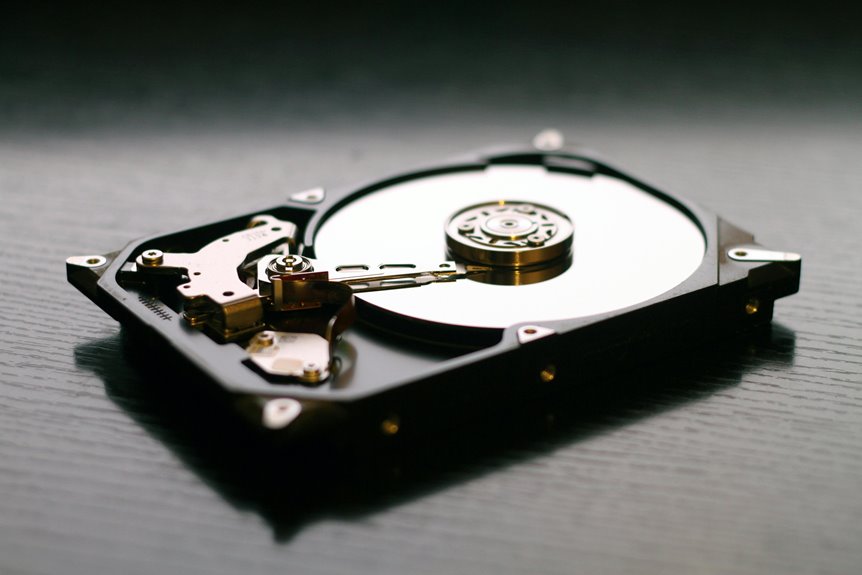
SSDs use flash memory, which means they've no moving parts, resulting in lower power consumption and increased durability. On the other hand, HDDs rely on spinning disks and read/write heads, making them more prone to mechanical failure over time.
In terms of storage capacity, HDDs typically offer larger sizes at a lower price per gigabyte, while SSDs are more expensive but provide faster access to data.
Knowing these distinctions helps you decide which option fits your needs best, whether you prioritize speed, durability, or storage capacity for your computer.
Performance: Speed and Efficiency Comparison
SSDs and HDDs not only differ in structure but also in performance, particularly in speed and efficiency. If you're looking to boost your computer's responsiveness, understanding these differences is crucial.
- Speed: SSDs load programs and files much faster than HDDs, often reducing boot times significantly.
- Access Time: SSDs offer near-instant access to data due to their lack of moving parts, while HDDs rely on spinning disks.
- Energy Efficiency: SSDs consume less power, which can lead to longer battery life in laptops compared to HDDs.
- Noise: SSDs operate silently, while HDDs can produce noise due to mechanical parts in motion.
Choosing the right drive can greatly impact your overall computing experience, so consider these factors carefully.
Storage Capacity: Evaluating Your Needs
How much storage do you really need for your home computer? It depends on how you use your device. If you're a casual user, like browsing the web or streaming, then 256GB might suffice. However, if you create content, play high-end games, or store large files, you might need 1TB or more.
Here's a quick breakdown:
| Usage Type | Recommended Storage |
|---|---|
| Casual User | 256GB |
| Average Gamer | 512GB |
| Content Creator | 1TB+ |
Consider your current storage habits and future needs. By evaluating how much data you store, you can make a more informed decision between SSD and HDD options, ensuring your computer meets your storage capacity requirements.
Cost Analysis: Budget Considerations
When you're budgeting for your computer's storage, you'll notice a clear price difference between SSDs and HDDs.
While HDDs usually come at a lower upfront cost, SSDs can offer better long-term value with their speed and reliability.
It's important to weigh these factors to find the right balance for your needs and budget.
Price Comparison Overview
Choosing the right storage solution for your home computer often comes down to budget considerations, as prices can vary significantly between SSDs and HDDs.
Generally, HDDs are cheaper, making them a more attractive option for budget-conscious buyers. However, SSDs offer speed and performance benefits that might justify their higher cost.
Here's a quick price comparison overview:
- HDD Prices: Typically range from $50 to $150 for larger capacities.
- SSD Prices: Usually range from $100 to $300, depending on storage size and brand.
- Performance: SSDs are faster, which can impact productivity.
- Lifespan: HDDs may last longer under certain conditions, but SSDs have improved durability.
Ultimately, weigh these factors against your budget to make the best choice.
Long-term Investment Value
While you might initially lean towards the lower price of an HDD, considering the long-term investment value of SSDs could lead to better overall savings.
SSDs typically have faster read and write speeds, which means your computer will boot up quicker and load applications faster. This efficiency can save you time, translating into productivity gains, especially if you rely on your computer for work or gaming.
Moreover, SSDs are more durable and less prone to mechanical failure, reducing the likelihood of costly data recovery. Over time, the benefits of speed, reliability, and lower power consumption can offset the higher upfront cost.
Durability and Reliability: Which Drive Lasts Longer?
How do SSDs and HDDs stack up in terms of durability and reliability?
When choosing between these two storage options, consider the following factors:
- Shock Resistance: SSDs have no moving parts, making them less susceptible to damage from drops or bumps.
- Lifespan: SSDs generally last longer than HDDs, especially under heavy use, thanks to superior technology.
- Temperature Tolerance: SSDs perform better in extreme temperatures, while HDDs can struggle.
- Data Loss Risk: HDDs are more prone to mechanical failure, increasing the risk of data loss.
Installation and Compatibility: What You Need to Know
When it comes to installing a new storage drive, understanding compatibility is crucial to ensure a smooth setup.
First, check your computer's specifications to see if it supports SSDs or HDDs, as some older systems may have limitations. You'll also want to confirm the connection type; SATA is common for both, but NVMe drives require M.2 slots.
Next, consider the size of the drive. Most desktops accommodate 3.5-inch HDDs, while laptops typically use 2.5-inch drives or M.2 SSDs.
Make sure you have the necessary mounting brackets or adapters if needed.
Finally, familiarize yourself with the installation process—whether you'll be cloning your old drive or doing a fresh install—to avoid any hiccups along the way.
Use Cases: When to Choose SSD or HDD
Are you wondering which type of storage drive best suits your needs? The choice between SSD and HDD often depends on how you plan to use your computer.
Here are some scenarios to help you decide:
- Gaming: Go for SSDs for faster load times and smoother gameplay.
- Media Storage: HDDs are ideal for storing large files like videos and photos due to their higher capacity at lower costs.
- General Use: If you need a balance, consider a hybrid approach with both SSD for your operating system and HDD for additional storage.
- Portability: SSDs are lighter and more durable, making them a better choice for laptops or external drives.
Evaluate your specific needs to make an informed decision!
Frequently Asked Questions
Can I Use Both SSD and HDD in One Computer?
Yes, you can definitely use both an SSD and an HDD in one computer. This setup lets you enjoy the speed of an SSD for your operating system and the larger storage capacity of an HDD.
How Much Faster Is an SSD Compared to an HDD?
An SSD's speed can be five to twenty times faster than an HDD. You'll notice quicker boot times, faster file transfers, and overall improved performance, making your computing experience much smoother and more efficient.
Do SSDS Generate More Heat Than HDDS?
SSDs generally generate less heat than HDDs because they lack moving parts. While both can warm up during heavy use, you'll find SSDs are more efficient, keeping your system cooler overall during everyday tasks.
Can I Recover Data From a Failed SSD?
Yes, you can sometimes recover data from a failed SSD, but it's tricky. If you've important files, consider professional recovery services. Don't attempt DIY methods unless you're familiar with the risks involved.
What Are the Best Brands for SSDS and HDDS?
When considering the best brands for SSDs and HDDs, look for well-known names like Samsung, Western Digital, and Seagate. They consistently offer quality, reliability, and performance, making them excellent choices for your storage needs.