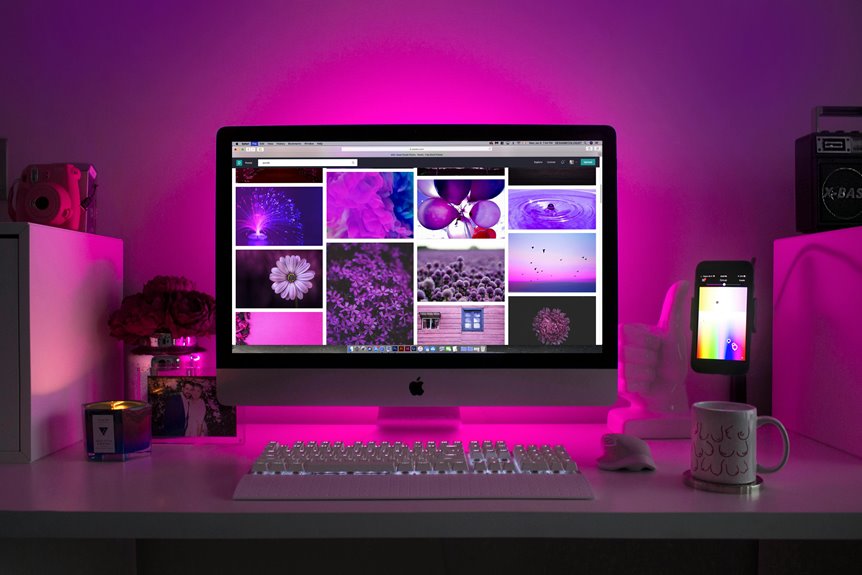
Creating an ergonomic monitor setup doesn't have to break the bank. With a few simple adjustments, you can enhance your comfort and reduce strain during long hours at your desk. Start by assessing your current workspace and consider factors like monitor height and distance. These changes can significantly impact your posture and overall well-being. Curious about the specific steps to take for an optimal setup? Let's explore them together.
Key Takeaways
- Use household items like books or boxes to elevate your monitor to eye level, ensuring a neutral neck position.
- Adjust your chair height so your feet rest flat on the ground, promoting proper posture and comfort.
- Utilize a rolled-up towel or cushion for lower back support if your chair lacks lumbar support.
- Position your monitor 20 to 30 inches away, and tilt it slightly back to reduce glare and eye strain.
- Keep your workspace organized and clutter-free to enhance focus and movement, maximizing comfort on a budget.
Assessing Your Current Workspace
Before you can create an ergonomic monitor setup, you need to assess your current workspace. Start by examining your desk height and chair position. Make sure your chair supports your lower back and allows your feet to rest flat on the ground.
Next, check the distance between your eyes and the monitor; ideally, it should be about an arm's length away. Look at the lighting in the room as well; glare can cause eye strain, so adjust your blinds or use an anti-glare screen if necessary.
Finally, consider any clutter on your desk that may distract you or hinder movement. By evaluating these factors, you'll lay the groundwork for a more comfortable and efficient workspace.
Choosing the Right Monitor Height
Once you've assessed your current workspace, it's time to focus on monitor height, a key factor in achieving comfort during long hours of screen time.
Your monitor should be positioned so that the top of the screen is at or just below eye level. This helps reduce neck strain and keeps your head in a neutral position.
When seated, your eyes should naturally align with the top third of the screen. If you find yourself looking down or up, adjust the height accordingly.
Use monitor stands, books, or risers if needed, but ensure your screen is stable.
Positioning Your Monitor for Optimal Viewing
To set up your monitor for optimal viewing, make sure it's aligned at eye level to reduce strain.
You also need to consider the distance from your eyes and the tilt and angle of the screen.
These adjustments can significantly enhance your comfort and productivity while working.
Eye Level Alignment
Aligning your monitor at eye level is crucial for reducing strain and enhancing comfort during long hours of work.
When the top of your screen is at or slightly below eye level, it helps maintain a neutral neck position. This minimizes the risk of neck and back pain.
You should sit up straight in your chair, positioning your monitor about an arm's length away, and tilt it slightly back to avoid glare.
If your monitor is too low, consider using a stand or stack of books to elevate it.
Adjust your chair height if necessary, ensuring your feet rest flat on the floor.
A well-aligned monitor setup promotes better posture and allows you to focus on your tasks without discomfort.
Distance From Eyes
The ideal distance between your eyes and the monitor is typically about 20 to 30 inches, or roughly an arm's length away. This distance helps reduce eye strain and allows you to comfortably read text and view images without leaning forward or squinting.
To find the right spot, sit back in your chair and extend your arm; your fingers should just brush the screen. If the monitor feels too close or too far, adjust it accordingly. Remember, your setup should promote comfort and efficiency.
Additionally, ensure that the text on your screen appears sharp and clear, as this will help maintain your focus and productivity throughout the day. Adjusting the distance can make a significant difference in your overall experience.
Tilt and Angle
After you've established the right distance from your eyes to your monitor, the next step is to adjust the tilt and angle for optimal viewing.
You want the top of your screen to be at or just below eye level, allowing your eyes to look slightly downwards. Tilt the monitor back about 10 to 20 degrees; this helps reduce glare and minimizes neck strain.
Make sure you can comfortably see the screen without tilting your head too much. If you frequently switch between tasks or screens, consider a monitor with adjustable height and angle features.
This way, you'll maintain a comfortable posture, reducing fatigue during long hours of work or gaming. Proper positioning makes a significant difference!
Adjusting Your Chair and Desk Height
To create a comfortable workspace, you need to adjust your chair and desk height properly.
Start by ensuring your chair supports your lower back while allowing your feet to rest flat on the floor.
Next, set your desk height so your elbows are at a 90-degree angle when typing, keeping your wrists straight.
Chair Height Adjustment
When you adjust your chair height, it's crucial to ensure your feet rest flat on the floor for optimal support. This position helps distribute your weight evenly and reduces strain on your legs and lower back.
Start by sitting in your chair with your back against the backrest. Adjust the height so your knees are at a 90-degree angle and align with your hips. If your feet don't touch the ground, consider using a footrest for added support.
Your thighs should be parallel to the floor, preventing any pressure points. Remember, a well-adjusted chair enhances your comfort and productivity, allowing you to focus on your work without discomfort.
Regularly check and adjust your chair height as needed.
Desk Height Considerations
Adjusting your desk height is just as important as setting your chair for a comfortable workspace. Your desk should allow your elbows to rest at about a 90-degree angle while typing.
If your desk is too high, you might find yourself straining your shoulders; if it's too low, you'll hunch over, causing back pain.
To find your ideal desk height, sit in your chair with your feet flat on the floor. Raise or lower your desk until your forearms are parallel to the ground.
If you can't adjust your desk, consider using a keyboard tray or desk risers.
Utilizing Budget-Friendly Accessories
While creating an ergonomic monitor setup might seem daunting on a budget, you can easily find affordable accessories that enhance comfort and productivity.
These budget-friendly items can make a significant difference without breaking the bank. Here are some accessories to consider:
- Monitor Stand: Elevate your screen to eye level, reducing neck strain.
- Keyboard Tray: Keep your keyboard at a comfortable height for better wrist alignment.
- Wrist Rest: Provide support while typing, helping to prevent discomfort and fatigue.
- Cable Management Clips: Organize your cables to reduce clutter and maintain a clean workspace.
Maintaining Good Posture While Working
Maintaining good posture is crucial for preventing discomfort and promoting productivity during long hours at your computer.
Start by ensuring your chair supports your lower back, keeping your feet flat on the floor or on a footrest. Adjust your monitor so the top is at or slightly below eye level, allowing you to look straight ahead without straining your neck.
Keep your elbows at a 90-degree angle, close to your body, with wrists straight while typing. Avoid leaning forward or slumping, as this can lead to tension and fatigue.
Remember to sit back in your chair, using the backrest for support. These small adjustments can make a significant difference in how you feel throughout your workday.
Incorporating Breaks and Movement Into Your Routine
Incorporating regular breaks and movement into your routine is essential for sustaining energy and focus throughout the day.
It's easy to get lost in your work, but taking short breaks can boost productivity and reduce fatigue. Set a timer to remind yourself to step away every hour. Use this time to stretch, walk around, or do a quick exercise.
Here are some effective ways to integrate breaks and movement:
- Stand up and stretch for a couple of minutes.
- Take a brisk walk around your workspace.
- Do a few squats or lunges to get your blood flowing.
- Practice deep breathing exercises to refresh your mind.
Frequently Asked Questions
What Are the Signs of an Ergonomic Setup?
You'll notice signs of an ergonomic setup when your neck, back, and eyes feel comfortable. If you're not straining or adjusting frequently, and your posture's natural, you've likely created a supportive workspace.
Can I Use Multiple Monitors Ergonomically?
Yes, you can use multiple monitors ergonomically! Position them at eye level, keep them close to reduce neck strain, and ensure your chair supports good posture. This setup enhances productivity while minimizing discomfort during long hours.
How Often Should I Adjust My Setup?
You should adjust your setup regularly, ideally every few hours. Pay attention to discomfort; if you notice strain or fatigue, it's time to tweak your positioning or monitor height for better ergonomics.
What Are Common Ergonomic Mistakes to Avoid?
When setting up your workspace, avoid common ergonomic mistakes like slouching, using a screen that's too low, or sitting too far from your monitor. Keep your chair adjusted and maintain a neutral wrist position to reduce strain.
Do I Need a Special Chair for Ergonomics?
You don't necessarily need a special chair for ergonomics, but a supportive, adjustable chair can greatly improve your posture. Focus on height, lumbar support, and comfort to create a healthier workspace that suits your needs.