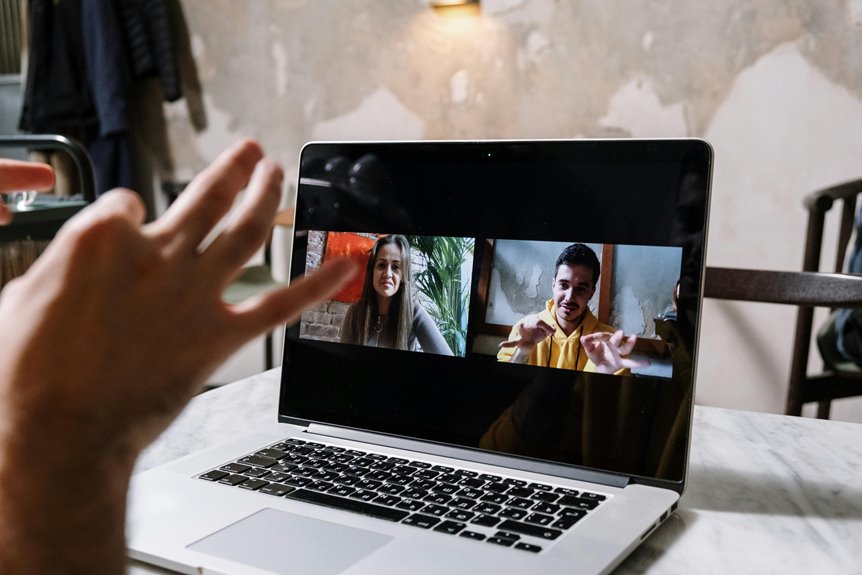
To host successful webinars on Zoom as a freelancer, start by setting up your Zoom account with a Pro plan and enabling essential features. Plan your content to cover key points and engage your audience with polls and Q&A sessions. Promote your event through social media and email to attract attendees. During the webinar, interact actively and keep it engaging. Afterward, follow up with a thank-you email and share the recording. There's plenty more to discover about enhancing your webinars.
Key Takeaways
- Sign up for a Pro Zoom account to access essential features like registration and reporting for your webinars.
- Plan your content with a clear structure and engaging elements like polls, Q&A sessions, and visuals to maintain interest.
- Promote your webinar through social media, email invitations, and partnerships to attract a wider audience.
- Engage your audience during the webinar by encouraging participation and addressing attendees by name for a personal touch.
- Follow up with a thank-you email, share the recording, and request feedback to enhance future webinars and maintain connections.
Setting Up Your Zoom Account for Webinars
To host successful webinars on Zoom, you first need to set up your account properly. Start by signing up for a Zoom account, opting for the Pro plan or higher, which allows for larger participant limits and extended meeting durations.
Next, verify your profile is complete, including your display name and profile picture. Go to the settings tab and enable features like registration, reporting, and webinar settings, which help you manage participants effectively.
Ensure your profile is complete with a display name and picture, and enable key settings for effective participant management.
It's also wise to customize your personal meeting ID for a more professional touch. Finally, familiarize yourself with the interface and test your audio and video settings to confirm everything runs smoothly during your webinar.
With these steps, you'll be ready to engage your audience confidently.
Planning Your Webinar Content and Structure
While planning your webinar content and structure, it's essential to keep your audience's needs in mind. Start by identifying your main topic and outline key points you want to cover. Aim for a logical flow, breaking down complex ideas into digestible segments.
Incorporate engaging elements like polls, Q&A sessions, and visuals to maintain interest. Decide on the duration of your webinar—keeping it between 45-60 minutes usually works best.
Make sure you allocate time for questions and interaction, as this enhances the learning experience. Finally, practice your presentation to refine your delivery and timing. This preparation will help you connect with your audience and keep them engaged throughout the session.
Promoting Your Webinar to Attract Attendees
How can you effectively promote your webinar to attract more attendees? Start by leveraging your social media platforms. Share eye-catching graphics and engaging captions that highlight the value of your webinar.
Create a Facebook event or LinkedIn post to expand your reach. Don't forget to tap into your email list—send out a well-crafted invitation that outlines what attendees can expect to learn.
Consider partnering with influencers or other freelancers who can help spread the word. Utilize relevant hashtags to increase visibility and encourage sharing.
Finally, offer early bird registration incentives or exclusive content to motivate sign-ups. By actively promoting your webinar across multiple channels, you'll guarantee a larger audience enthusiastic to engage with your content.
Engaging Your Audience During the Webinar
You've successfully attracted attendees, and now it's time to keep them engaged throughout your webinar. Start by encouraging participation—ask questions, use polls, and solicit feedback. These interactive elements not only break the monotony but also make your audience feel valued.
Keep your content dynamic by incorporating visuals like slides or videos. Share relevant anecdotes to illustrate your points and maintain interest. Make sure to vary your tone and pace to avoid sounding monotonous.
Whenever possible, address attendees by name to create a personal connection. Finally, remind participants of the agenda and what they can expect, so they stay focused.
Following Up After the Webinar for Continued Connection
Once your webinar wraps up, it's crucial to maintain the momentum you've built with your audience. Follow up with a thank-you email, including a link to the recording and any promised resources. Encourage feedback to foster engagement and improve future webinars.
Here's a quick table to help you structure your follow-up:
| Action | Purpose | Timing |
|---|---|---|
| Send Thank You Email | Express gratitude | Within 24 hours |
| Share Recording | Allow review and sharing | Within 24 hours |
| Request Feedback | Gather insights for improvement | Within one week |
These steps will keep your audience connected and enthusiastic for your next event. Stay engaged, and watch your community grow!
Frequently Asked Questions
Can I Host a Webinar Without a Paid Zoom Account?
You can't host a webinar on Zoom without a paid account. Free accounts limit your meeting duration and participant numbers, making it tough to effectively manage larger groups, so consider upgrading for better features.
What Is the Maximum Number of Attendees for a Zoom Webinar?
The maximum number of attendees for a Zoom webinar depends on your plan. With a basic account, you can host up to 100 participants, while higher-tier plans allow for 500 or even 1,000 attendees.
How Do I Record My Zoom Webinar Session?
To record your Zoom webinar session, you'll need to enable recording in settings. During the session, click "Record" on the toolbar. Afterward, you'll find the recording in your Zoom folder for easy access.
Can I Use Polls During My Webinar?
Yes, you can use polls during your webinar! They're a great way to engage your audience and gather feedback. Just set them up before the session, and you'll keep everyone involved and interested.
Is It Possible to Share My Screen During the Webinar?
Yes, you can share your screen during the webinar. Just click the "Share Screen" button in Zoom, select the window or application you want to display, and everyone will see what you're sharing instantly.