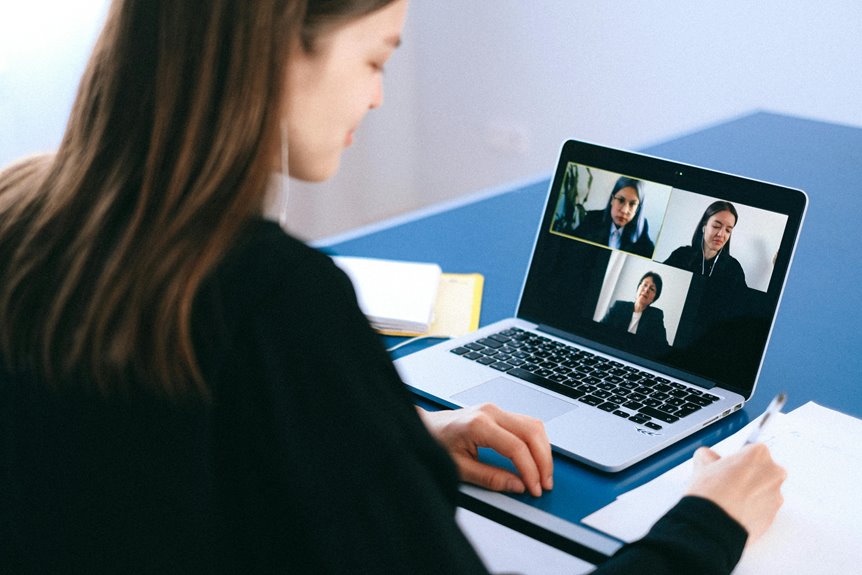
To improve your webcam performance on slow internet, start by adjusting your video resolution to 720p or lower for smoother streaming. Close any unnecessary applications and tabs that may drain your system resources. Switching to a wired connection can also enhance stability. Make sure your lighting conditions are optimal, as good lighting can improve image quality. If you're using virtual backgrounds, choose simpler options. Stick around to discover more tips for maximizing your webcam experience!
Key Takeaways
- Lower video resolution settings to 720p or 480p to reduce lag on slow connections, optimizing clarity and performance.
- Close unnecessary applications and tabs to free up system resources and improve video quality during calls.
- Use a wired Ethernet connection instead of Wi-Fi for more stable and faster internet speeds, reducing interruptions.
- Enhance lighting by using natural light and soft sources to improve webcam image quality without adding strain on the connection.
- Choose simpler virtual backgrounds to minimize processing power requirements and maintain better video performance.
Adjust Your Video Resolution Settings
When you want to enhance your webcam performance, adjusting your video resolution settings is a crucial step.
Start by accessing your webcam's settings through the software you're using. Look for the video settings menu, where you'll find resolution options. Higher resolutions can improve clarity, but they also require more bandwidth.
If you're on a slow internet connection, try lowering the resolution to 720p or even 480p. This can significantly reduce lag and buffering. Remember, a clear image is important, but it's not worth sacrificing smoothness.
Test different settings to find the right balance for your needs. Once you've made adjustments, monitor your performance during calls to ensure you're satisfied with the results.
Close Unnecessary Applications and Tabs
To boost your webcam performance, start by closing any unnecessary applications and tabs.
Resource-heavy programs can drain your system's power, making your video quality suffer.
Identify Resource-Heavy Applications
Identifying resource-heavy applications is crucial for enhancing your webcam performance. When you're using a slow internet connection, every bit of bandwidth matters.
Start by checking your computer's task manager to see which applications consume the most CPU, memory, or network resources. Programs like video editing software or large downloads can drain your system and hinder webcam quality.
Once you identify these applications, consider closing them to free up essential resources. Even background applications can use bandwidth, so it's wise to quit anything unnecessary. If you're not actively using an app, close it.
This simple step can significantly improve your webcam's functionality, allowing for a smoother experience in video calls or streaming sessions.
Limit Browser Tabs Open
Although it might be tempting to keep multiple browser tabs open for convenience, doing so can significantly impact your webcam performance. Each open tab consumes valuable bandwidth and system resources, which can lead to lagging video and poor audio quality during your calls.
To enhance your experience, try closing any unnecessary tabs before joining a video conference. Focus on the task at hand by keeping only essential tabs open, such as your meeting link or shared documents.
This simple step can free up bandwidth and improve the overall quality of your connection. Remember, a smoother video experience leads to better communication, so take the time to streamline your browser environment for optimal performance.
Optimize Background Processes
Since your device's performance can be hampered by unnecessary applications running in the background, it's crucial to close any programs that you aren't using during a video call.
Start by checking your task manager to see which applications are consuming resources. Programs like file-sharing services, music players, or even heavy browser extensions can steal bandwidth and processing power.
Next, close any unused tabs in your browser—each one consumes memory and can slow down your connection.
If you're using multiple applications for communication, choose one to avoid extra strain.
By optimizing background processes, you'll free up essential resources, ensuring your webcam performance is as smooth as possible, even on slow internet.
Optimize Your Internet Connection
To ensure your webcam performs at its best, optimizing your internet connection is crucial. A strong and stable connection helps maintain video quality and reduces lag.
Here are some effective tips to enhance your internet performance:
- Close unnecessary applications that use bandwidth.
- Limit the number of devices connected to your network.
- Schedule downloads and updates for off-peak hours.
- Clear your browser's cache and cookies periodically.
- Restart your modem and router regularly to refresh the connection.
Use a Wired Connection Instead of Wi-Fi
If you want to take your webcam performance to the next level, consider switching to a wired connection instead of relying on Wi-Fi. A wired connection, using an Ethernet cable, provides a more stable and faster internet speed. This stability reduces lag and minimizes interruptions during video calls, making your experience smoother.
Unlike Wi-Fi, which can be affected by distance or interference from other devices, a wired connection ensures that your bandwidth is consistently available. Plus, you won't have to worry about fluctuating signal strength.
Setting up a wired connection is straightforward; just plug one end of the Ethernet cable into your router and the other into your computer. You'll likely notice an immediate improvement in your webcam's performance.
Enhance Your Lighting Conditions
A reliable wired connection sets the stage for better webcam performance, but the lighting in your environment can make a significant difference too. Proper lighting enhances your appearance and ensures your video feed looks crisp.
Here are some tips to improve your lighting conditions:
- Use natural light: Position yourself facing a window for soft, flattering illumination.
- Add soft light sources: Utilize lamps with diffusers to reduce harsh shadows.
- Avoid backlighting: Ensure no bright lights are behind you, as they can create silhouettes.
- Experiment with angles: Adjust light sources to find the most flattering position.
- Consider color temperature: Aim for bulbs that mimic daylight for the best visual effect.
Upgrade Your Webcam Software
To get the most out of your webcam, you need to upgrade your software.
Make sure you check for updates, optimize your video settings, and reduce any background processes that might be slowing you down.
These steps can significantly enhance your streaming quality and overall performance.
Check for Software Updates
While you mightn't realize it, outdated webcam software can significantly hinder your video quality and performance.
Keeping your software up to date is essential for optimal functionality. Here are some reasons to check for updates regularly:
- Improved performance: Updates often enhance speed and efficiency.
- Bug fixes: Developers frequently resolve issues that can affect your video quality.
- New features: You might gain access to advanced tools and settings.
- Compatibility: Ensure your webcam works seamlessly with other software and hardware.
- Security enhancements: Protect yourself from vulnerabilities that outdated software might expose.
Optimize Video Settings
Optimizing your video settings can dramatically enhance your webcam's performance, especially if you've recently upgraded your webcam software. Start by adjusting the resolution and frame rate. Lowering these settings can help reduce the bandwidth needed for smooth video. Additionally, consider enabling features like auto-focus and brightness adjustment for clearer images.
Here's a quick reference table to help you with optimal settings:
| Setting | Recommended Value | Impact on Performance |
|---|---|---|
| Resolution | 720p | Moderate |
| Frame Rate | 30 fps | Low |
| Auto-focus | Enabled | Moderate |
| Brightness | Adjusted | High |
| Background Blur | Off | Low |
Reduce Background Processes
Reducing background processes can significantly boost your webcam's performance, especially when you're running resource-intensive applications.
By closing unnecessary programs and services, you free up valuable system resources, allowing your webcam to operate more efficiently.
Here are some steps you can take:
- Close unused applications, like browsers or document editors.
- Disable startup programs that you don't need.
- Check for background updates or downloads and pause them.
- Use the Task Manager to identify and end resource-heavy tasks.
- Restart your computer to clear temporary files and refresh system resources.
Implementing these changes can enhance your webcam experience, ensuring smoother video quality and better connectivity during your calls or streams.
Consider Using Virtual Backgrounds Wisely
If you want to enhance your webcam experience, using virtual backgrounds can be a smart move. They can mask distractions in your environment and create a more professional appearance.
However, be cautious—some virtual backgrounds require significant processing power, which can strain your connection, especially on slow internet. Opt for simpler backgrounds or ones that closely match your real environment to minimize lag.
Test different options before your meeting to see what works best. Also, ensure good lighting; shadows can make virtual backgrounds less effective.
Frequently Asked Questions
Can Using a Different Webcam Improve Performance on Slow Internet?
Using a different webcam can improve your streaming experience, but it's not a guaranteed fix for slow internet. Higher-quality webcams may offer better resolution, yet your connection speed ultimately limits overall performance and video quality.
How Does Background Noise Affect Webcam Performance?
Background noise can distract you and your viewers, making communication less effective. It might cause your microphone to pick up unwanted sounds, leading to poor audio quality, which negatively impacts the overall webcam experience.
Is a Higher Frame Rate Always Better for Video Calls?
A higher frame rate isn't always better for video calls. While it can enhance smoothness, too high of a rate may strain your bandwidth, causing lag. Finding a balance ensures clearer, more stable communication during calls.
Do Browser Settings Impact Webcam Quality and Performance?
Yes, your browser settings definitely impact webcam quality and performance. Adjusting video settings, enabling hardware acceleration, and managing extensions can enhance your experience. It's worth experimenting to find what works best for you.
Can I Use My Smartphone as a Webcam for Better Results?
Yes, you can use your smartphone as a webcam for better results. By connecting it to your computer via USB or Wi-Fi, you'll often achieve higher resolution and improved image quality compared to standard webcams.