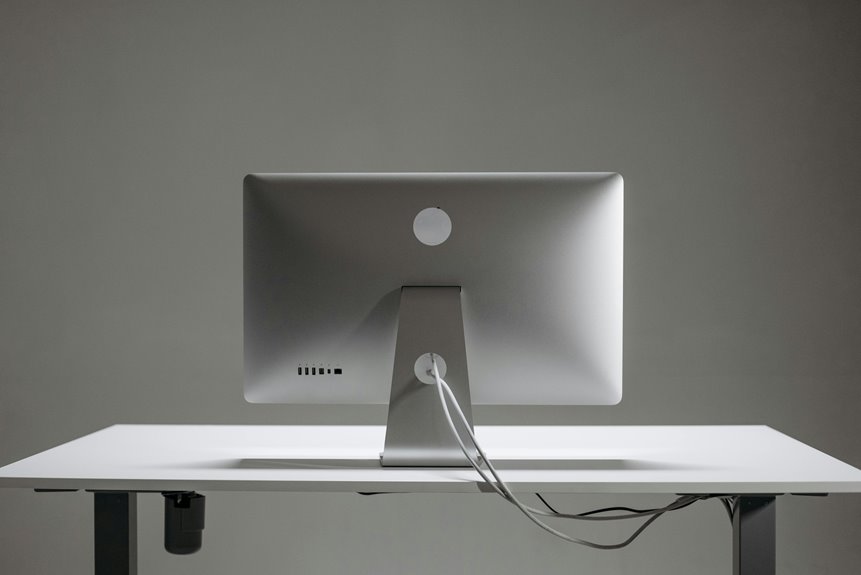
To manage cables for your multi-monitor setup without going insane, first assess your cable needs and choose the right cables based on your monitors and PC outputs. Use cable management tools like clips and sleeves to organize and conceal cables. Create a cable routing plan to avoid clutter and label each cable for easy identification. Implement power strips and keep cables off the floor to minimize hazards. There’s more to explore to make your workspace even better.
Key Takeaways
- Identify and choose the right cables based on monitor types and connection options to ensure compatibility and optimal performance.
- Measure cable lengths accurately, allowing for extra slack to avoid clutter and ensure neat routing along surfaces.
- Use cable management tools like clips, sleeves, and trays to organize and conceal cables, enhancing both aesthetics and functionality.
- Implement power distribution solutions, such as surge protectors and cable management boxes, to minimize tripping hazards and keep cables off the floor.
- Regularly inspect and maintain cables to prevent damage, ensuring a tidy and efficient multi-monitor workspace.
Assess Your Cable Needs
Before diving into your multi-monitor setup, it’s essential to assess your cable needs to confirm everything runs smoothly.
Start by identifying how many monitors you plan to connect and what type of connections they require. Look at your computer’s output options, like HDMI, DisplayPort, or VGA.
Identify the number of monitors you want to connect and check their connection types alongside your computer’s output options.
Consider the distance between your monitors and your PC, as longer cables may affect signal quality. Take note of any additional peripherals, like speakers or webcams, that might require extra connections.
Don’t forget to factor in any potential future expansions. By understanding your cable requirements upfront, you’ll avoid frustration later on and confirm a seamless and organized multi-monitor experience.
Planning ahead will save you time and headaches down the line.
Choose the Right Cables
When setting up your multi-monitor system, picking the right cables is essential.
You’ll want to contemplate the types of cables you’ll need, their lengths, and the quality to guarantee a smooth experience.
Choosing wisely can make all the difference in your setup’s performance and appearance.
Cable Types Explained
Choosing the right cables for your multi-monitor setup can make a significant difference in performance and ease of use.
Start by identifying the types of connections your monitors and computer support. HDMI cables are great for transmitting high-definition video and audio, while DisplayPort cables offer even higher resolutions and refresh rates.
If you’re looking for a budget-friendly option, VGA cables might work, but they don’t support high-definition signals. For older setups, DVI cables can provide a solid connection, though they lack audio transmission.
Always consider the specifications of your monitors and graphics card to guarantee compatibility. By choosing the right cables, you’ll minimize signal issues and enjoy a smoother multi-monitor experience.
Length Considerations
While selecting cables for your multi-monitor setup, it’s essential to take into account their length to guarantee a tidy and functional workspace.
Measure the distance between your monitors and the computer, adding extra length for routing cables neatly along walls or behind furniture. Too short cables can lead to tension and strain, while excessively long cables create clutter.
Aim for a balance; you want just enough length to avoid tight pulls without excessive slack. Additionally, consider investing in cable management solutions like clips or sleeves to keep everything organized.
Planning for the right cable lengths not only enhances your setup’s aesthetics but also assures peak performance and reduces wear on the cables over time.
Quality Matters
Quality is paramount in selecting cables for your multi-monitor setup. When you choose cables, don’t skimp on quality, as poor materials can lead to signal degradation and connectivity issues.
Look for reputable brands that offer durable, well-shielded cables to guarantee peak performance. Consider the types of connections your monitors require, such as HDMI, DisplayPort, or DVI, and make sure you select cables that match those specifications.
Additionally, pay attention to the cable’s bandwidth capabilities; higher bandwidth allows for better resolutions and refresh rates. Investing in high-quality cables not only enhances your visual experience but also reduces the likelihood of frustrating downtime.
Utilize Cable Management Tools
To keep your multi-monitor setup tidy, using cable management tools is essential.
Consider incorporating cable clips and ties, along with sleeves and covers, to organize those unruly cords.
You can also explore desk cable management solutions that fit your workspace and enhance its overall look.
Cable Clips and Ties
When setting up a multi-monitor workspace, using cable clips and ties can make a significant difference in maintaining organization.
These simple tools help you secure cables along desks or walls, preventing them from tangling or creating a mess. You can easily attach clips to the edges of your desk or use adhesive versions for a cleaner look.
Ties come in various sizes and materials, allowing you to bundle cables neatly without risking damage. Opt for Velcro ties for easy adjustments or plastic zip ties for a more permanent solution.
Cable Sleeves and Covers
Cable sleeves and covers are essential for achieving a streamlined look in your multi-monitor setup. These tools not only hide unsightly cords but also protect them from wear and tear. When choosing sleeves or covers, consider the material and size to guarantee a snug fit for your cables.
Here’s a quick comparison of popular options:
| Type | Benefits |
|---|---|
| Neoprene Sleeves | Flexible, durable |
| Spiral Wraps | Easy to apply, versatile |
| Velcro Straps | Adjustable, reusable |
| Cable Covers | Aesthetically pleasing, protective |
Desk Cable Management Solutions
Keeping your workspace tidy is essential for an efficient multi-monitor setup, and utilizing cable management tools can make a world of difference. By incorporating these solutions, you can maintain a clean environment while minimizing distractions.
- Cable clips: Secure cables along your desk edges to prevent tangling.
- Cable trays: Install under your desk to hide and organize excess wires.
- Velcro straps: Bundle cables together for a neat appearance.
- Cable management boxes: Conceal power strips and excess cables stylishly.
- Cable sleeves: Group multiple cables into one sleeve for streamlined organization.
Using these tools not only enhances your workspace aesthetics but also improves functionality. This allows you to focus on your tasks without the chaos of tangled wires.
Create a Cable Routing Plan
Creating a cable routing plan is essential for maintaining an organized and efficient multi-monitor setup. Start by surveying your workspace and determining the best cable paths. Visualize where each monitor will sit and mark potential cable routes.
Consider using cable clips or raceways to guide cables along walls or under your desk, keeping them out of sight and untangled. Group cables together based on their purpose, like power cords or data cables, to simplify the process.
Remember to leave some slack in the cables to allow for adjustments. By planning your cable routes in advance, you’ll minimize clutter and frustration, making your workspace more enjoyable and productive.
Keep it neat, and your setup will thrive!
Label Your Cables
While it might seem like a small task, labeling your cables can greatly enhance your multi-monitor setup‘s organization. When you take the time to label each cable, you save yourself the frustration of trying to figure out which cable goes where. This simple step helps streamline troubleshooting and adjustments.
Labeling your cables may seem minor, but it significantly improves organization and simplifies troubleshooting in your multi-monitor setup.
Consider these tips for effective labeling:
- Use clear, legible labels that indicate the purpose of each cable.
- Choose waterproof or durable label materials to withstand wear.
- Color-code your labels for quick identification.
- Place labels at both ends of the cable for easier access.
- Update labels as you change your setup to keep things accurate.
With these strategies, you’ll maintain a neat and efficient workspace.
Use Cable Ties and Clips
After labeling your cables, the next step in organizing your multi-monitor setup is to use cable ties and clips. These handy tools help keep your cables bundled together, reducing clutter and making your workspace look neater.
Start by grouping your cables based on which monitor or device they connect to. Use cable ties to secure these bundles and prevent tangling. For longer runs, consider using clips to attach cables to your desk or walls, guiding them along a specific path.
This way, you’ll not only improve your setup’s appearance but also make it easier to identify and access each cable when needed. With a little effort, you’ll achieve a clean, organized environment that enhances your productivity.
Implement a Power Distribution Solution
A solid power distribution solution is essential for any multi-monitor setup. It helps you manage the power needs of all your devices while keeping things organized.
Here are some key components to evaluate when implementing your solution:
- Surge Protector: Safeguard your equipment from power surges.
- Power Strips: Use strips with multiple outlets to accommodate all devices.
- Smart Plugs: Control power remotely, adding convenience and energy efficiency.
- Cable Management Box: Store excess cables and power strips neatly.
- Labeling: Clearly label each cable for easy identification.
Keep Cables Off the Floor
To keep your workspace tidy and safe, it’s essential to keep cables off the floor.
You can use cable management clips, install cable raceways, or elevate your cords with desk organizers.
These simple solutions not only enhance your setup’s appearance but also reduce tripping hazards.
Use Cable Management Clips
Using cable management clips is essential for keeping your workspace organized and clutter-free. These simple tools help you secure cables along desks, walls, or even behind monitors, preventing them from tangling or creating a mess.
Here are some benefits of using cable management clips:
- Keeps cables off the floor, reducing tripping hazards
- Enhances the aesthetics of your workspace
- Simplifies cable identification and access
- Minimizes wear and tear on cables
- Helps maintain a professional appearance during video calls
Install Cable Raceways
Installing cable raceways is a great way to keep your cables off the floor and neatly organized. These handy channels allow you to conceal and route cables along walls or furniture, giving your workspace a clean look.
To get started, measure the length of your cables and decide where you want the raceways to go. Most raceways come with adhesive backing or mounting hardware, making installation a breeze. Simply stick or screw them into place, then feed your cables through the channels.
This not only prevents tripping hazards but also protects your cables from wear and tear. Plus, it makes it easier to access and manage your cables whenever you need to add or remove devices.
Elevate With Desk Organizers
Cable raceways help keep your workspace tidy, but desk organizers can take your setup to the next level by elevating cables and devices off the floor.
This simple adjustment not only reduces clutter but also improves your overall productivity. With cables neatly organized, you’ll find it easier to focus on your work without distractions.
Consider incorporating these items into your setup:
- Cable trays to hold excess cords
- Vertical cable organizers for easy access
- Multi-device charging stations to declutter outlets
- Under-desk baskets to conceal larger cables
- Desk clips to manage smaller cords
Regularly Review and Maintain
While it might be easy to overlook, regularly reviewing and maintaining your cables is essential for a seamless multi-monitor experience.
Take the time to check for any frayed or damaged cables that could affect performance or safety. Confirm that your connections are secure and that the cables aren’t getting pinched or bent at awkward angles.
Regularly inspect your cables for damage and ensure all connections are secure to maintain optimal performance and safety.
Dust and debris can accumulate, so clean your setup periodically to avoid overheating or signal issues. Consider labeling cables to easily identify them during maintenance.
If you notice any tangling or clutter, take a moment to reorganize. By keeping up with these small tasks, you’ll prevent larger problems down the road and confirm your multi-monitor setup remains efficient and organized.
Personalize Your Setup for Aesthetics
To create a visually appealing multi-monitor setup, consider how the arrangement and aesthetics of your workspace can enhance your productivity and enjoyment.
Personalizing your setup isn’t just about functionality; it’s also about creating an environment you love. Here are some tips to elevate your workspace:
- Choose a color scheme that resonates with you and complements your monitors.
- Use cable management solutions that blend with your decor, like cable sleeves or clips.
- Incorporate plants or artwork to add a personal touch.
- Invest in monitor stands that match your style, enhancing both aesthetics and ergonomics.
- Use ambient lighting to create a cozy atmosphere and reduce eye strain.
Frequently Asked Questions
How Can I Hide Cables Behind My Monitors?
To hide cables behind your monitors, use adhesive cable clips to secure them along the edges. You can also consider cable sleeves or a cable management box to keep everything neat and organized.
Are There Specific Colors for Cables That Work Best Together?
When you see a setup with sleek black cables alongside a white monitor, it really pops. Generally, contrasting colors work best together, so consider pairing dark cables with light-colored backgrounds for a clean, organized look.
How Often Should I Replace Old Cables?
You should replace old cables whenever you notice fraying, damaged connectors, or performance issues. Regular checks every few months can help guarantee your setup runs smoothly. Don’t wait until problems arise; proactive maintenance saves time!
Can I Use Wireless Solutions for My Multi-Monitor Setup?
Wondering if you can ditch those pesky cables? Yes, you can! Wireless solutions like Miracast or Chromecast let you connect multiple monitors without clutter, but check compatibility and performance before fully committing to the switch.
What to Do if Cables Are Too Short for My Setup?
If your cables are too short, consider purchasing extenders or longer cables. You could also rearrange your setup to better utilize existing lengths. Just be sure to maintain a tidy arrangement to avoid clutter.