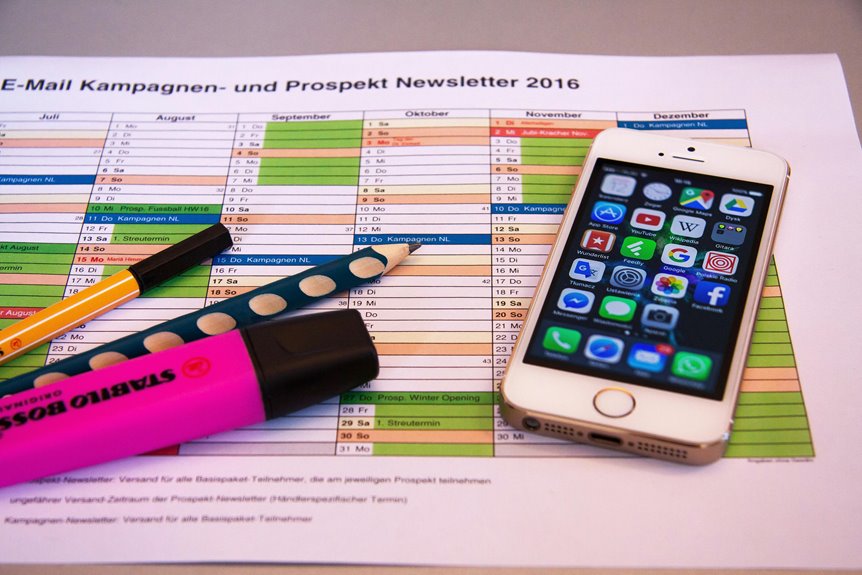
To set recurring routines with calendar apps, first, choose a user-friendly app that suits your needs. Open the calendar, select your start date, and create a new event. Use the "Repeat" or "Recurrence" option to specify frequency and end dates. Don't forget to customize notifications for alerts before each event. Integrate your calendar with other tools for seamless updates. Stick with a consistent routine, and you'll stay on track. Learn more tips for optimizing your calendar use!
Key Takeaways
- Open your calendar app and select the initial date for the recurring routine event.
- Create a new event and select the "Repeat" or "Recurrence" option for frequency.
- Specify an end date if needed to limit the duration of the recurring event.
- Set alerts for reminders, choosing notification types and lead times that suit your needs.
- Maintain consistency by scheduling activities at the same time and adapting as necessary.
Choosing the Right Calendar App for Your Needs
When it comes to choosing the right calendar app for your needs, what features matter most to you?
You'll want an app that's user-friendly, allowing you to navigate effortlessly. Look for customizable views—daily, weekly, and monthly options can help you see your schedule clearly.
Integration with other tools, like email and task managers, can streamline your planning process. Notifications are essential, too; timely reminders keep you on track.
If you share your calendar, check for collaboration features that let you coordinate with others easily. Finally, consider offline access; it's handy when you're without internet.
Setting Up Recurring Events
To efficiently manage your time, setting up recurring events in your calendar app can be a game changer.
Start by opening your calendar and selecting the date for your first event. You'll typically find an option to create a new event; click on it.
Open your calendar and choose the date for your first event, then click to create a new event.
Look for a "Repeat" or "Recurrence" option and choose how often you want the event to occur—daily, weekly, monthly, or yearly. Specify the end date if necessary.
Fill in other event details like time and location and save it. You'll notice that your calendar now shows this event on the specified days.
Customizing Notifications and Reminders
How can you guarantee you never miss an important event? Customizing notifications and reminders in your calendar app is the key.
Start by setting alerts for each recurring event. You can choose how far in advance you want to be notified—whether it's a day, a week, or even an hour before.
Adjust the notification type too. Some apps let you select between pop-up notifications, emails, or even text messages. Make sure these reminders are specific to your needs; vague alerts can easily be overlooked.
Additionally, review your notification frequency. Too many can become annoying and lead to you ignoring them altogether.
Find a balance that keeps you informed without overwhelming you. With these tweaks, you'll stay on top of your schedule effortlessly.
Integrating Your Calendar With Other Tools
Customizing notifications and reminders helps keep you organized, but integrating your calendar with other tools can take your productivity to the next level.
By connecting your calendar to project management apps, for instance, you can automatically sync deadlines and tasks, ensuring nothing slips through the cracks.
Linking to communication platforms like Slack or Microsoft Teams allows you to receive real-time updates on meetings and deadlines.
Consider using automation tools like Zapier to create workflows that connect your calendar to email, to-do lists, or note-taking apps.
This way, you streamline your processes and reduce the time spent switching between applications.
The more integrated your tools are, the more efficient and organized you'll become in managing your recurring routines.
Tips for Maintaining Consistency in Your Routines
Sticking to your routines can be challenging, but a few key strategies can help you stay on track.
First, set specific times for each activity and treat them like appointments you can't miss. Next, use reminders on your calendar app to nudge you when it's time to start.
Set specific times for your activities and use calendar reminders to ensure you stay on track.
Consistency is key, so try to keep your routines at the same time every day or week. Don't forget to celebrate small wins; acknowledging your progress boosts motivation.
Additionally, stay flexible—if something disrupts your routine, adapt rather than abandon it. Finally, share your goals with friends or family for accountability.
With these tips, you'll find it easier to maintain your routines and reach your objectives.
Frequently Asked Questions
Can I Use Multiple Calendar Apps Simultaneously?
Yes, you can use multiple calendar apps simultaneously. Just make sure they sync correctly with your devices. You'll find it helpful to manage different aspects of your life, like work, personal, and family commitments effectively.
How Do I Delete a Recurring Event Completely?
To delete a recurring event completely, open your calendar app, find the event, and select it. Choose the option to delete, then select "all occurrences" to guarantee every instance is removed. You've done it!
Are Recurring Events Synced Across Devices?
Yes, recurring events are typically synced across devices. If you've set them up correctly, you'll see the same events on your phone, tablet, or computer, ensuring your schedule stays consistent wherever you are.
What if My Schedule Changes Frequently?
If your schedule changes frequently, adapt your routines as needed. Don't hesitate to update your calendar regularly. Flexibility is key—make adjustments to guarantee your plans align with your current commitments and priorities.
Can I Share My Recurring Events With Others?
Yes, you can share your recurring events with others. Most calendar apps let you send invitations or share links, ensuring everyone stays updated on your schedule. Just check the sharing settings on your app.