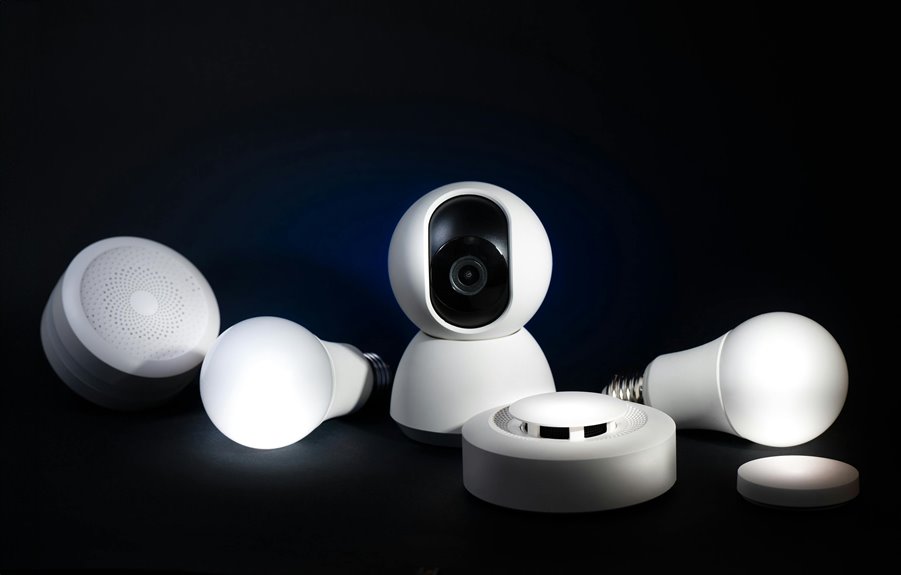
To use webcams for home office security monitoring, start by choosing a model with at least 1080p resolution and features like night vision and motion detection. Position your webcam in a corner at eye level for the best coverage, avoiding bright lights to minimize glare. Integrate reliable software with cloud storage and two-way audio. Make sure to implement strong passwords and encryption to protect your footage. There are more tips that can help you enhance your setup even further.
Key Takeaways
- Position the webcam to cover all entry points and ensure a wide-angle view for maximum monitoring efficiency.
- Utilize motion detection features to receive real-time alerts about any activity in your home office.
- Enable remote access functionality to monitor your home office from anywhere using a secure internet connection.
- Regularly test the webcam for clear footage and adjust angles as needed to maintain optimal coverage.
- Implement strong passwords and encryption to protect your webcam footage from unauthorized access.
Choosing the Right Webcam for Security Monitoring
When you're looking to enhance your home office security, choosing the right webcam is crucial. Start by considering the resolution; a higher resolution ensures clear images, which can be vital for identifying intruders. Look for webcams with at least 1080p quality.
Next, check for features like night vision and motion detection, as these enhance your monitoring capabilities. Wireless options can offer flexibility in placement, but ensure they've strong security protocols to prevent hacking.
Additionally, consider the field of view; a wider angle captures more of the room. Don't forget about two-way audio; it allows you to communicate with anyone in the space.
Finally, read reviews to find reliable brands that suit your specific needs.
Setting Up Your Webcam for Optimal Coverage
To ensure your webcam provides optimal coverage for home office security, start by carefully selecting its placement.
Position it in a corner of the room to maximize the field of view, ensuring it captures entrances and windows. Make sure it's mounted at eye level; this angle helps identify faces and details clearly.
Avoid placing the webcam near bright lights or windows to reduce glare and shadows. Test different angles by recording short clips to find the best perspective.
Additionally, secure the webcam to prevent tampering. If you have multiple cameras, maintain a consistent setup across all devices for streamlined monitoring.
Finally, regularly check your webcam's position and functionality to adapt to any changes in your office layout.
Integrating Webcam Software for Enhanced Features
Integrating webcam software can significantly enhance your home office security by adding features that improve functionality and monitoring capabilities.
Many webcam software options offer motion detection, allowing you to receive alerts when movement is detected, ensuring you're always informed. You can also enable cloud storage for recorded footage, making it easy to access past events whenever needed.
Some programs allow for remote access, so you can monitor your office from anywhere, using your smartphone or tablet. Additionally, consider using software with two-way audio, letting you communicate if needed.
Tips for Effective Remote Monitoring
While maintaining a secure home office, effective remote monitoring can make all the difference in protecting your workspace.
Start by placing your webcam in a strategic location that captures all entry points. Ensure the camera has a wide-angle view to monitor a larger area. Regularly adjust the angle and focus to keep the footage clear and relevant.
Use motion detection features to receive alerts when there's activity, so you can respond quickly. Invest in quality software that allows you to access live feeds remotely, giving you peace of mind.
Always test the system periodically to make sure everything's functioning properly. By following these tips, you can enhance your home office security and stay informed about your workspace.
Ensuring Privacy and Security of Your Footage
Monitoring your home office effectively is just the first step; ensuring the privacy and security of your footage is equally important.
You want to protect sensitive information from unauthorized access or breaches. Here are some key strategies to help you secure your footage:
- Use strong passwords: Create complex passwords for your webcam and associated accounts, and change them regularly.
- Enable encryption: Opt for cameras that support encryption to protect your video streams from being intercepted.
- Limit access: Only grant access to trusted individuals and regularly review who's permissions to view your footage.
Additional Security Measures to Complement Your Webcam
To enhance your home office security beyond just your webcam, consider implementing additional measures that work in tandem.
Start by installing a reliable alarm system that alerts you to any unauthorized access. Pair this with motion-activated lights outside your office; they deter intruders and provide visibility.
You might also want to invest in a smart lock for your office door, allowing you to control access remotely. Regularly updating your software and firmware keeps your devices secure from cyber threats, too.
Finally, consider using security cameras that offer cloud storage for easy access and backup of footage.
Combining these measures with your webcam will create a comprehensive security system for your home office.
Frequently Asked Questions
Can I Use Multiple Webcams for Broader Coverage?
Yes, you can definitely use multiple webcams for broader coverage. Position them strategically around your space to capture different angles, ensuring a comprehensive view. This setup enhances security and helps you monitor your environment effectively.
What Are the Best Webcam Brands for Security?
When choosing the best webcam brands for security, consider Logitech, Razer, and Microsoft. They offer high-quality video, reliability, and excellent features. You'll want a brand that suits your specific monitoring needs and budget.
How Do I Troubleshoot Webcam Connectivity Issues?
To troubleshoot webcam connectivity issues, check your cable connections, ensure the device is powered on, restart your computer, update drivers, and verify your software settings. If problems persist, try a different USB port or device.
Are There Any Monthly Fees for Webcam Security Software?
Yes, some webcam security software does require monthly fees, while others offer free versions with limited features. You should compare options to find the best fit for your needs without overspending on unnecessary services.
Can Webcams Record Audio Along With Video?
Yes, most webcams can record audio along with video. You just need to ensure the microphone's enabled in your settings, and you'll capture both sound and visuals during your recordings or livestreams effortlessly.