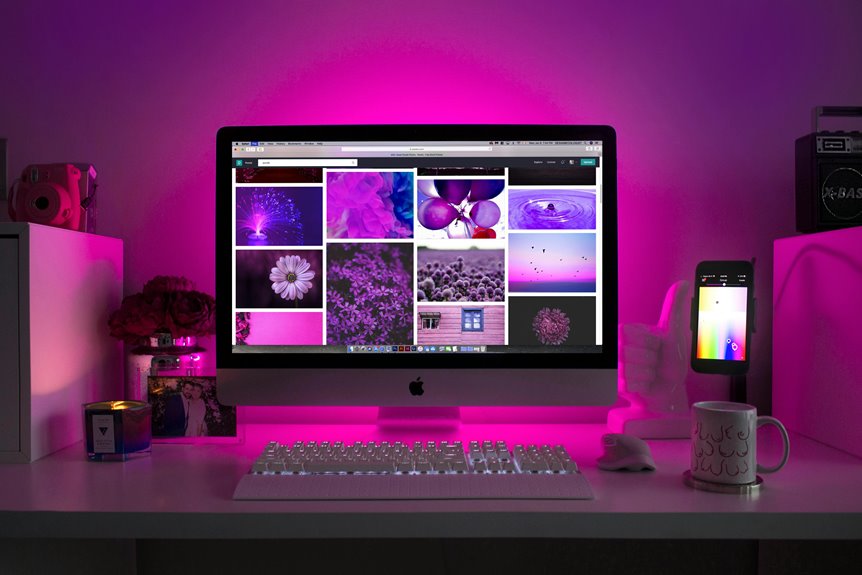
To see if your desk is ready for two monitors, first assess your space—it should have enough surface area and room for proper cable management. Choose monitors that are at least 24 inches, with 1080p resolution or higher. Position them at eye level, an arm’s length away, and use stands if necessary for height adjustments. Good cable organization keeps your setup tidy. Stick around, and you’ll discover more tips to optimize your workspace effectively.
Key Takeaways
- Measure your desk space to ensure enough surface area for two monitors, a keyboard, and a mouse without overcrowding.
- Choose monitors that are at least 24 inches with a minimum resolution of 1080p for optimal viewing.
- Position monitors at or just below eye level, an arm’s length away, to reduce eye strain and improve posture.
- Implement cable management solutions to keep cords organized and avoid clutter, enhancing desk aesthetics and functionality.
- Utilize software tools for window management and productivity tracking to optimize workflow across multiple screens.
Assessing Your Current Desk Space
Before you plunge into adding a second monitor, take a moment to assess your current desk space.
Look around and visualize how much room you’ve got. Consider the dimensions of your desk and how it fits in your overall workspace. You’ll want to make sure you have enough surface area for both monitors without crowding your keyboard or mouse.
Assess your desk space to ensure there’s enough room for both monitors without cluttering your keyboard or mouse.
Think about cable management, too; you’ll need to avoid a tangled mess that hinders productivity.
Also, check your chair’s position and adjust it for ideal viewing angles.
Don’t forget about lighting; glare can be a real problem with multiple screens.
Choosing the Right Monitors for Your Setup
How do you choose the right monitors for your dual setup? Start by considering the size and resolution. Larger screens, typically 24 inches or more, offer more workspace and better multitasking. Aim for at least 1080p resolution for clear visuals, but 1440p or 4K can enhance your experience further.
Next, think about panel types: IPS panels provide vibrant colors and wide viewing angles, while TN panels are faster but less color-accurate. Connection options matter too; make sure your computer supports the monitors’ ports, whether HDMI, DisplayPort, or USB-C.
Finally, consider your aesthetic—matching monitors can create a cohesive look. By evaluating these factors, you can find the perfect monitors to optimize your workspace.
Ergonomics: Positioning Your Monitors for Comfort
To guarantee you’re comfortable while working, it’s essential to position your monitors correctly. Improper placement can lead to strain and discomfort, impacting your productivity.
Here are some tips to help you find the ideal setup:
- Eye Level: Top of the monitors should be at or just below eye level.
- Distance: Position monitors about an arm’s length away to reduce eye strain.
- Angle: Tilt monitors slightly back for better viewing angles and reduced glare.
- Height: Use monitor stands if necessary to achieve the right height.
- Alignment: Keep monitors aligned side by side to minimize neck movement.
Cable Management and Organization Tips
Proper monitor positioning not only enhances comfort but also sets the stage for effective cable management.
To keep your workspace tidy, start by grouping cables together. Use cable ties or Velcro strips to bundle them, reducing clutter. Consider a cable management tray under your desk to hide excess cords—this keeps them out of sight and easily accessible.
Label each cable to simplify troubleshooting and adjustments later. If you can, route cables along the back of your desk or use adhesive clips to secure them along the edges.
Finally, invest in cable sleeves for a cleaner look. With these tips, you’ll create a polished workspace that boosts productivity and minimizes distractions.
Enhancing Your Workflow With Software Solutions
While multiple monitors can considerably boost your productivity, the right software solutions can elevate your workflow even further. By utilizing effective tools, you can streamline tasks and enhance collaboration between screens.
Maximize your dual monitor setup by leveraging the right software tools to enhance your productivity and streamline your workflow.
Here are some software solutions to contemplate:
- Window Management Tools: Easily snap and arrange windows across your monitors.
- Task Automation Software: Automate repetitive tasks to save time and reduce errors.
- Communication Platforms: Stay connected with colleagues through chat and video calls.
- Virtual Desktops: Create separate workspaces for different projects to minimize distractions.
- Productivity Tracking Apps: Monitor your time and analyze your work habits for improvement.
Implementing these tools will help you access the full potential of your dual monitor setup.
Frequently Asked Questions
Will Using Two Monitors Increase My Productivity Significantly?
Using two monitors can greatly boost your productivity. You’ll find it easier to multitask, compare documents side by side, and reduce time spent switching between tabs. It’s a game-changer for efficient workflow.
Can I Use Different Monitor Brands Together?
Yes, you can use different monitor brands together. Just guarantee they share compatible connections and resolutions. Mixing brands might lead to slight differences in color or display quality, but most people find it manageable.
What Is the Ideal Size for Dual Monitors?
The ideal size for dual monitors typically ranges from 24 to 27 inches. This size balances screen real estate and comfort, allowing you to multitask efficiently without straining your eyes or neck.
How Do I Adjust My Computer Settings for Dual Monitors?
To adjust your computer settings for dual monitors, right-click on the desktop, select “Display settings,” and configure the arrangement, resolution, and orientation. Make sure both monitors are detected before you finalize your setup.
Are There Any Risks to Eye Health With Dual Monitors?
Using dual monitors can strain your eyes if you don’t practice good habits. Try adjusting brightness, increasing font size, and taking regular breaks. Staying mindful of your screen time helps maintain your eye health effectively.