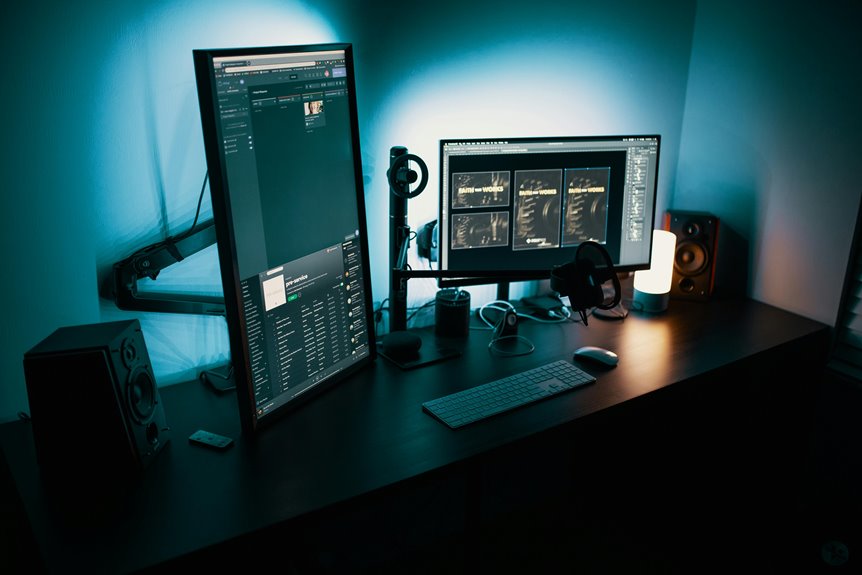
To maximize your productivity with the ultimate desk setup, consider using multiple monitors. This enhances your workflow, allowing for seamless multitasking and focus. Choose the right monitors by evaluating size, resolution, and connectivity. Arrange them ergonomically, with your main screen in front and the secondary at an angle. Don’t forget to invest in essential accessories like an ergonomic chair and monitor stand. By optimizing your workspace, you’ll achieve more—and there’s even more to explore about creating an efficient setup.
Key Takeaways
- Utilize multiple monitors to enhance productivity by expanding screen space and reducing time spent switching between tabs.
- Choose monitors with appropriate size, resolution, and panel type to ensure clarity and accurate color representation.
- Arrange monitors ergonomically, with the primary screen at eye level and the secondary monitor at a slight angle for seamless viewing.
- Invest in an ergonomic chair and monitor stand to support posture and reduce strain during long working hours.
- Implement effective cable management and organization solutions to create a tidy workspace that fosters focus and efficiency.
Understanding the Benefits of Multiple Monitors
Using multiple monitors can greatly enhance your productivity and streamline your workflow. With extra screen real estate, you can multitask more effectively. Imagine having your email open on one screen while you work on a document or analyze data on another. This setup reduces the need to constantly switch between tabs, saving you time and reducing frustration.
You’ll also notice improved focus. By dedicating screens to specific tasks, you minimize distractions, allowing for deeper concentration.
Collaboration becomes easier too; sharing visuals and information across monitors can facilitate teamwork. Plus, organizing your workspace visually can lead to better time management.
Ultimately, multiple monitors create a more efficient and enjoyable work environment, helping you achieve your goals faster and with less stress.
Choosing the Right Monitors for Your Setup
When it comes to choosing the right monitors for your setup, you’ll want to evaluate several key factors to confirm they meet your needs.
First, consider the size and resolution; larger screens with higher resolutions can enhance clarity and multitasking.
Next, think about panel type—IPS panels offer better color accuracy and viewing angles, while TN panels are typically faster and cheaper.
Don’t forget about connectivity options; verify your monitors have the necessary ports for your devices.
Additionally, look for ergonomic features like height adjustment and tilt capabilities to improve comfort.
Finally, set a budget that balances quality and affordability.
Optimal Monitor Arrangement for Maximum Efficiency
To maximize your efficiency, it’s essential to arrange your monitors in a way that promotes comfort and productivity.
Place your primary monitor directly in front of you, at eye level, to reduce neck strain. If you have a secondary monitor, position it to the side at a slight angle, keeping it within your natural line of sight.
This setup allows for seamless shifts between screens without excessive head movement. Make sure that both monitors are at the same height to maintain visual consistency. Use monitor stands or adjustable arms if needed.
Additionally, consider the distance between your eyes and the screens; they should be around an arm’s length away for ideal viewing.
This arrangement will help you stay focused and efficient.
Ergonomic Considerations for Your Desk Setup
Creating an ergonomic desk setup is essential for your long-term health and productivity, as it helps prevent strain and discomfort during extended work hours. Start by positioning your monitor at eye level, so you don’t strain your neck. Your chair should support your lower back, and your feet need to rest flat on the floor.
Here’s a quick reference table to help you design your workspace:
| Ergonomic Element | Recommendation |
|---|---|
| Monitor Height | Eye level or slightly below |
| Chair Support | Lumbar support required |
| Desk Height | Elbows at 90-degree angle |
| Foot Position | Flat on the ground |
Essential Accessories to Enhance Your Workspace
To truly enhance your workspace, you can’t overlook essential accessories like an ergonomic chair and a monitor stand.
These tools not only boost your comfort but also improve productivity by keeping everything organized.
Plus, effective cable management solutions help maintain a tidy environment, allowing you to focus on your tasks.
Ergonomic Chair Importance
While you mightn’t think about it often, an ergonomic chair is one of the most essential elements in enhancing your workspace. It provides important support for your back, neck, and posture, reducing the risk of discomfort during long hours of work.
When you sit comfortably, you’re more focused and productive. An ergonomic chair encourages proper alignment, allowing you to maintain energy levels and prevent fatigue.
Plus, with adjustable features, you can tailor it to your body’s unique shape, ensuring maximum comfort. Investing in a quality chair not only enhances your physical well-being but also boosts your overall work efficiency.
Monitor Stand Benefits
A monitor stand is a game changer for your desk setup, elevating your screens to eye level and promoting better posture. By investing in one, you’ll experience several benefits that enhance your workspace:
- Increased Comfort: You’ll reduce neck and eye strain, allowing you to work longer without discomfort.
- Improved Organization: A monitor stand creates extra space underneath for storing documents, office supplies, or even a keyboard, decluttering your desk.
- Enhanced Focus: With your monitor at the right height, you’ll find it easier to concentrate on tasks, boosting your overall productivity.
Incorporating a monitor stand into your workspace isn’t just about aesthetics; it’s about creating a functional environment that supports your work style.
Cable Management Solutions
Effective cable management can transform your workspace from chaotic to organized in no time. Start by using cable clips or adhesive cable organizers to keep cords in place along your desk’s edge.
You can also invest in a cable sleeve to bundle multiple cables together, reducing clutter and tangling. For a cleaner look, consider a cable management box to hide power strips and excess wiring.
Velcro ties are handy for securing cables and allowing for easy adjustments when needed. Finally, label your cables to quickly identify which belongs to what device.
With these solutions, you’ll not only enhance your workspace aesthetics but also improve your productivity by minimizing distractions. A tidy desk promotes focus and creativity!
Organizing Your Desk for Improved Focus
To enhance your focus, organizing your desk is essential for creating an efficient workspace. A clutter-free environment minimizes distractions, helping you concentrate better.
Organizing your desk is crucial for boosting focus and minimizing distractions in your workspace.
Here are three key steps to organize your desk effectively:
- Declutter Regularly: Remove unnecessary items and keep only what you need. This includes papers, pens, and gadgets.
- Zone Your Workspace: Designate specific areas for different tasks. For instance, have a dedicated spot for your computer, writing materials, and personal items to streamline your workflow.
- Use Storage Solutions: Invest in organizers, shelves, or drawers to keep everything in its place. This won’t only improve aesthetics but also make finding items easier.
Tips for Maintaining a Productive Environment
Once your desk is organized, maintaining a productive environment becomes the next priority.
Start by establishing a routine that includes regular breaks; stepping away helps clear your mind and boosts focus.
Keep your workspace clutter-free by regularly decluttering and only keeping essential items within reach.
Adjust your lighting to reduce eye strain—natural light is ideal, but task lighting can also help.
Consider using noise-canceling headphones or background music to minimize distractions.
Finally, set clear boundaries with yourself and others. Communicate your work hours and stay committed to them, ensuring you’re less likely to get sidetracked.
Frequently Asked Questions
What Are the Best Monitor Brands for Productivity?
When considering monitor brands for productivity, you should check out Dell, ASUS, and LG. They offer great color accuracy, ergonomic designs, and reliable performance, ensuring you stay focused and efficient throughout your workday.
How Do I Connect Multiple Monitors to My Computer?
To connect multiple monitors to your computer, you’ll need compatible ports like HDMI or DisplayPort. Plug the monitors in, adjust display settings in your operating system, and arrange them as you prefer for peak productivity.
Can I Use Different Monitor Sizes Together?
Yes, you can use different monitor sizes together. Just verify your computer’s graphics card supports multiple displays. Adjust the display settings to align them properly, and you’ll create a functional workspace that suits your needs.
What Software Can Enhance Multi-Monitor Productivity?
You can enhance multi-monitor productivity with software like DisplayFusion, which lets you manage multiple screens efficiently, or Microsoft PowerToys, offering window management tools. These programs help you stay organized and streamline your workflow seamlessly.
How Do I Manage Notifications Across Multiple Screens?
To manage notifications across multiple screens, you can customize settings in your apps, use a notification aggregator, or set specific rules. Prioritize important alerts and silence less critical ones, keeping your workflow uninterrupted and focused.