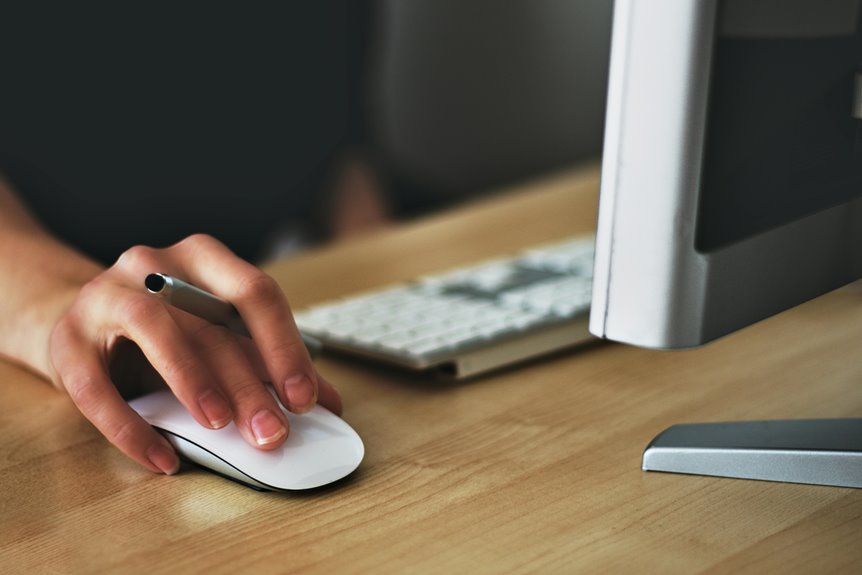
Your mouse hand position plays a vital role in your comfort and efficiency. Many overlook key factors that can lead to discomfort and decreased productivity. Ignoring wrist alignment or gripping too tightly can create unnecessary strain. Are you aware of the common mistakes that might be affecting your performance? Understanding these pitfalls is essential for improving your overall experience with your mouse. Let's explore what you might be doing wrong and how to correct it.
Key Takeaways
- Maintain a neutral wrist position to avoid discomfort and prevent injury from awkward angles during mouse use.
- Avoid overextending your reach to enhance precision and minimize strain on your wrists and arms.
- Use a relaxed grip on the mouse to improve natural hand movement and reduce tension and discomfort.
- Always use a mouse pad to ensure consistent tracking and to protect your wrist from strain on uneven surfaces.
- Take short breaks every 30 minutes to alleviate tension and incorporate stretching for improved comfort and productivity.
Ignoring Wrist Positioning
When you ignore wrist positioning while using a mouse, you risk discomfort and even injury. Maintaining a neutral wrist position is crucial for long-term comfort. Your wrist should be straight and aligned with your forearm, preventing strain.
If you let your wrist bend awkwardly, you might experience pain or tingling as time goes on.
To achieve proper positioning, keep your wrist elevated and avoid resting it on hard surfaces. Use a soft wrist pad if necessary, but ensure it doesn't force your wrist into an unnatural angle.
Adjust your mouse sensitivity to minimize excessive movement, allowing your whole arm to move instead of just your wrist. By prioritizing wrist positioning, you'll enhance your productivity and protect yourself from potential injuries.
Overextending Your Reach
Overextending your reach while using a mouse can seriously impact your precision and accuracy.
As you stretch your hand too far, you might also experience strain and discomfort in your wrist and arm.
It's crucial to maintain a comfortable position to improve your overall efficiency and well-being.
Impact on Precision
While you might not realize it, overextending your reach with the mouse can significantly impact your precision. When you stretch your hand too far, your control diminishes, leading to jerky movements and unintended clicks. This can be especially frustrating during tasks that require accuracy, like graphic design or gaming.
To help you visualize the issue, here's a quick reference table:
| Distance from Mouse | Precision Level | Common Mistakes |
|---|---|---|
| Close (0-2 inches) | High | None |
| Moderate (3-6 inches) | Medium | Uneven hand position |
| Far (7+ inches) | Low | Overreaching, awkward grip |
Strain and Discomfort
Maintaining a comfortable hand position is just as important as precision. When you overextend your reach while using the mouse, it can lead to strain and discomfort in your wrist and forearm.
If your hand stretches too far, you may find yourself constantly adjusting your posture, which can further exacerbate tension. To avoid this, keep your mouse close to your keyboard.
Ensure your elbow remains at a relaxed angle, ideally around 90 degrees. Remember to take regular breaks to stretch and reset your hand position. This not only helps prevent discomfort but also boosts your productivity.
Pay attention to how your body feels; it's crucial for maintaining long-term comfort and performance while using your computer.
Clenching Your Grip
Clenching your grip on the mouse can lead to unnecessary tension in your hand, which might cause discomfort over time.
By keeping your hand relaxed, you can improve your comfort and efficiency while using the mouse.
Let's explore how grip tension affects your performance and the benefits of a more relaxed approach.
Grip Tension Effects
When you grip your mouse too tightly, it can lead to discomfort and fatigue, impacting your overall performance. A tense grip restricts your hand's natural movement, making it harder to navigate smoothly across the screen.
You might notice that your fingers cramp or your wrist aches after extended use. This tension can also cause you to develop poor habits, like overcompensating with your arm or shoulder, leading to further strain.
Additionally, a tight grip can impair your precision, resulting in misclicks or sluggish responsiveness. To enhance your gaming or work experience, it's crucial to be aware of your grip and make adjustments.
Loosening your hold on the mouse can help prevent these negative effects and keep you more focused on your tasks.
Relaxed Hand Benefits
Although it might seem counterintuitive, relaxing your hand while using a mouse can significantly enhance your performance and comfort. When you unclench your grip, you decrease fatigue and improve fluidity in your movements. This leads to better precision and less strain over time.
| Benefit | Description | Impact on Performance |
|---|---|---|
| Reduced Fatigue | Less tension in hand muscles | Longer, efficient use |
| Improved Precision | Smoother, more controlled movements | Better accuracy |
| Decreased Strain | Lower risk of repetitive injuries | Enhanced comfort |
| Increased Speed | Faster response times | Overall productivity |
| Enhanced Focus | Less distraction from discomfort | Improved task completion |
Embrace a relaxed grip to maximize your mouse-hand experience!
Failing to Use a Mouse Pad
Have you ever noticed how a mouse pad can dramatically affect your comfort and precision while using a computer? Skipping this simple accessory might seem harmless, but it can lead to discomfort and even strain.
A mouse pad provides a consistent surface, helping your mouse track accurately, which means less frustration during use. Without it, you might find yourself battling against a slippery or uneven surface, causing your hand to work harder than necessary.
This can lead to awkward hand positions that may increase your risk of repetitive strain injuries. By investing in a quality mouse pad, you'll enhance your control and protect your wrist, allowing for a smoother, more comfortable computing experience.
Don't underestimate its importance!
Neglecting Breaks and Stretching
As you dive into hours of computer work, it's easy to forget the importance of taking breaks and stretching. Neglecting these can lead to discomfort or even chronic pain.
To keep your hands and wrists healthy, remember to incorporate these simple practices into your routine:
- Take Short Breaks: Every 30 minutes, step away from your screen for a few minutes. This helps refresh your mind and reduces strain on your hands.
- Stretch Your Hands: During breaks, gently stretch your fingers, wrists, and forearms. This can help alleviate tension and improve flexibility.
- Practice Proper Posture: Ensure your workstation is ergonomically set up, allowing your body to rest in a natural position while you work.
Taking these steps can make a significant difference in your comfort and productivity!
Not Adjusting Mouse Sensitivity
How often do you think about your mouse sensitivity settings? If you're not adjusting them, you could be hindering your performance and comfort. Finding the right sensitivity can enhance your precision and reduce strain on your wrist.
Here's a quick guide to help you decide:
| Sensitivity Level | Best For |
|---|---|
| Low | Precision tasks (design) |
| Medium | General use (browsing) |
| High | Fast-paced gaming |
| Custom | Personalized preferences |
Experiment with these settings to see what feels best for you. Remember, a well-adjusted mouse can significantly improve your productivity and comfort, so don't overlook this crucial aspect of your workspace!
Frequently Asked Questions
How Often Should I Replace My Mouse for Optimal Use?
You should replace your mouse every 1-3 years, depending on usage. If you notice lag, wear, or discomfort, it's time for a new one. Regular upgrades keep your setup efficient and comfortable.
Does Mouse Shape Affect Hand Positioning?
Yes, mouse shape definitely affects your hand positioning. A well-designed mouse fits the natural contour of your hand, reducing strain and promoting comfort. You'll notice improved control and efficiency with the right shape for your grip.
Can Using a Larger Mouse Reduce Strain?
Using a larger mouse can reduce strain by providing better support for your hand. It allows for a more natural grip, which can help prevent discomfort during prolonged use. You'll likely feel the difference quickly!
What Type of Mouse Is Best for Gaming?
For gaming, you'll want a mouse with a high DPI, customizable buttons, and ergonomic design. Look for one that fits comfortably in your hand, enabling quick reactions and precise movements for an optimal gaming experience.
How Can I Improve My Mouse Accuracy?
To improve your mouse accuracy, practice regularly, adjust your DPI settings for precision, and utilize aim training software. Experiment with different sensitivity levels until you find what feels comfortable and allows for better control during gameplay.