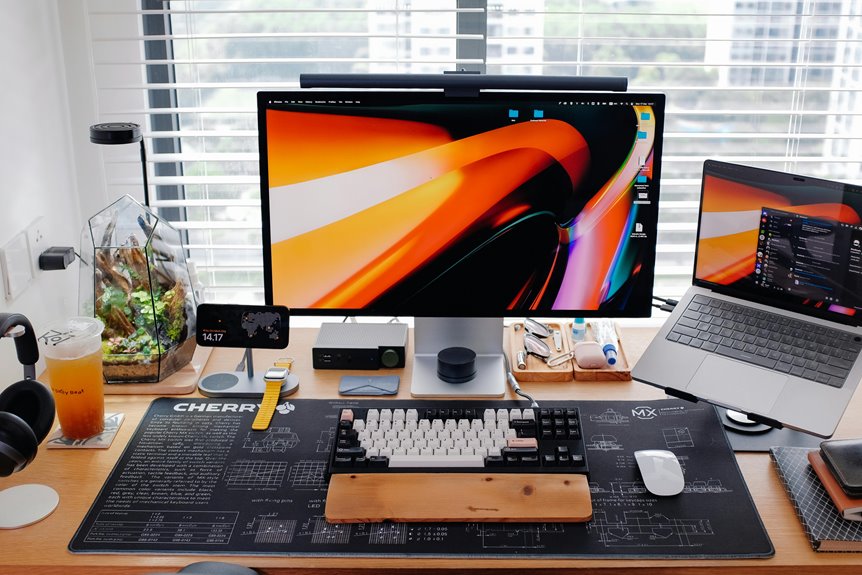
To set up your trackball mouse sensitivity for precision work, start by accessing your device's mouse settings in the control panel or system preferences. Adjust the pointer speed to a level that feels comfortable for you. Fine-tune the sensitivity further with dedicated software by customizing DPI settings and acceleration. Remember to test your new settings for accuracy. Keeping your trackball clean also enhances performance. There's more to discover about optimizing your setup for the best results.
Key Takeaways
- Access your device's mouse settings through the control panel or system preferences to adjust pointer speed for precision work.
- Experiment with sensitivity settings to find a balance between speed and control that suits your tasks.
- Utilize dedicated software to fine-tune DPI settings, allowing for precise movements tailored to your specific applications.
- Regularly clean your trackball to ensure optimal performance and prevent interference from dust and debris.
- Create and switch between profiles for different tasks to maintain tailored sensitivity settings for various applications.
Understanding Trackball Mouse Sensitivity
Understanding how trackball mouse sensitivity works is crucial for optimizing your user experience. Sensitivity determines how far the cursor moves on-screen in relation to the trackball's movement. A higher sensitivity setting means even slight movements will result in fast cursor motion, which can be beneficial for rapid tasks.
Conversely, lower sensitivity allows for precise control, making it easier to select small items or perform detailed actions. Finding the right balance depends on your specific needs and preferences.
Experimenting with different sensitivity levels helps you discover what feels comfortable and effective. Remember, your hand's movement speed and the precision required for your tasks play significant roles in determining the ideal sensitivity for you.
Adjusting sensitivity can enhance both productivity and comfort.
Accessing Mouse Settings on Your Device
To access mouse settings on your device, start by navigating to the control panel or system preferences.
Depending on your operating system, you'll find various options to customize your trackball mouse. Here's what you can typically adjust:
- Pointer speed: Control how fast the cursor moves across the screen.
- Button configuration: Reassign button functions for added convenience.
- Scroll settings: Adjust the scrolling behavior to suit your needs.
- Tracking options: Fine-tune how the trackball reacts to your movements.
Once you've located these settings, you can begin tailoring your mouse experience for improved precision and comfort.
Adjusting Sensitivity in Operating System Settings
Adjusting sensitivity settings for your trackball mouse can significantly enhance your user experience.
Start by accessing the mouse settings in your operating system. On Windows, go to the Control Panel, select "Mouse," and navigate to the "Pointer Options" tab. Here, you can adjust the pointer speed slider to find a comfortable sensitivity level.
If you're using macOS, open "System Preferences," click on "Mouse," and adjust the tracking speed slider. Experiment with different settings until the pointer feels responsive yet controlled.
Don't forget to apply your changes before exiting the settings. Fine-tuning these sensitivity settings is crucial for improving precision in your tasks, enabling you to work more efficiently and accurately with your trackball mouse.
Fine-Tuning Sensitivity With Software
While operating system settings provide a good starting point, fine-tuning your trackball mouse's sensitivity with dedicated software can lead to even better control and performance.
Many trackball mice come with their own software, allowing you to customize various settings. Here's how you can enhance your experience:
- Adjust DPI Settings: Change the dots per inch (DPI) for precise movements.
- Customize Acceleration: Fine-tune how quickly the cursor moves in relation to the trackball's movement.
- Set Button Functions: Reassign buttons for specific tasks to improve efficiency.
- Create Profiles: Save different sensitivity settings for various applications or tasks.
Using these software features can significantly enhance your precision and comfort, making your work more enjoyable and efficient.
Testing Your New Settings
Now that you've fine-tuned your trackball mouse settings, it's time to put them to the test.
Start by opening a program where precision is key, like a graphic design or CAD software. Move your trackball slowly and observe how smoothly the cursor responds. Check if your movements feel natural and accurate.
Try performing tasks that require detailed control, such as drawing lines or selecting small objects. If you notice any lag or difficulty, consider adjusting your sensitivity again.
It's also a good idea to test your settings across different applications to ensure consistency. Once you feel comfortable with the responsiveness, you'll know you've achieved the right balance for your work.
Keep refining until it feels just right!
Tips for Maintaining Optimal Sensitivity
To keep your trackball mouse performing at its best, regular cleaning is essential.
Dust and debris can interfere with sensitivity, so make it a habit to clean it often.
Additionally, don't forget to adjust your DPI settings as needed to match your usage for a smoother experience.
Regularly Clean Trackball
Maintaining optimal sensitivity in your trackball mouse requires regular cleaning, as dust and debris can significantly hinder its performance.
To keep your device functioning smoothly, follow these simple cleaning tips:
- Remove the trackball: Gently pop it out and set it aside for cleaning.
- Wipe the housing: Use a soft, lint-free cloth to remove dust and grime from the mouse's surface.
- Clean the trackball: Wash the trackball with warm soapy water, then dry it thoroughly before reinserting.
- Check the rollers: Inspect and clean any rollers inside the mouse to ensure they're free of dirt.
Adjust DPI Settings
After keeping your trackball clean, adjusting the DPI (dots per inch) settings can significantly enhance your mouse's sensitivity.
Start by accessing your mouse settings through your operating system or mouse software. A higher DPI means faster cursor movement, while a lower DPI offers more precision.
Experiment with different DPI levels to find what feels comfortable for your tasks. For detailed work, like graphic design or photo editing, consider lowering the DPI for greater accuracy. Conversely, for general navigation, a higher DPI can speed up your workflow.
Remember to test your adjustments in real-time, ensuring you're able to move smoothly without losing control. Finding the right balance in DPI settings will improve your overall productivity and comfort.
Frequently Asked Questions
Can I Use a Trackball Mouse for Gaming?
Yes, you can use a trackball mouse for gaming. It offers precise control, but it might take some time to adjust. If you enjoy the unique movement style, give it a try and see how it feels!
What Are the Benefits of a Trackball Mouse Over a Traditional Mouse?
A trackball mouse offers greater precision, reduced wrist strain, and improved workspace efficiency. You can navigate smoothly without moving your arm, making it ideal for intricate tasks, gaming, or extended computer sessions. It's comfortable and versatile!
How Does My Desk Surface Affect Trackball Performance?
Your desk surface impacts your trackball's performance significantly. A smooth, hard surface allows for better tracking and responsiveness, while a textured or uneven surface can hinder movement, making it harder to achieve precision in your work.
Are Trackball Mice Ergonomic Options for Wrist Pain?
Yes, trackball mice can be ergonomic options for wrist pain. They allow your hand to stay stationary while you control the cursor, reducing strain on your wrist and promoting a more comfortable posture during long use.
Can I Adjust Sensitivity for Different Applications Separately?
Yes, you can adjust sensitivity settings for different applications separately. Most trackball software allows you to create profiles, letting you customize sensitivity based on your needs, ensuring optimal performance for each task you tackle.