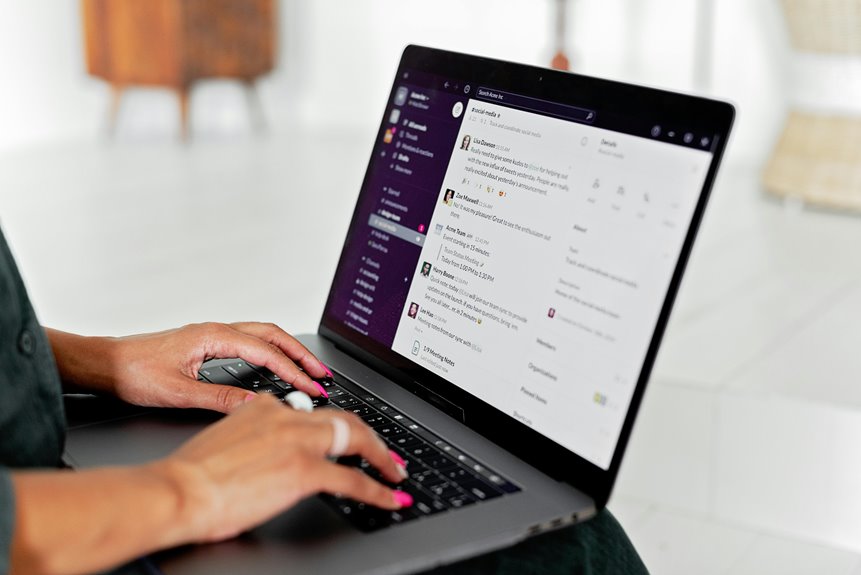
To efficiently manage freelance clients on Slack, organize your channels by projects or topics for focused discussions. Use direct messages for quick updates and integrate project management tools for seamless task oversight. Set reminders to keep track of important deadlines and utilize Slackbot for automated responses to common questions. Create and share custom templates to streamline communication and guarantee consistency. Stick around to discover more hacks that can elevate your client management game.
Key Takeaways
- Organize Slack channels by projects or clients to enhance focused discussions and easy navigation for both you and your clients.
- Utilize direct messages for quick updates and maintain clarity by summarizing key points for future reference.
- Integrate project management tools like Trello or Asana within Slack to streamline task assignments and progress updates.
- Set reminders and automate responses with Slackbot to enhance accountability and efficiency in client communications.
- Create and regularly refine communication templates to manage client expectations and ensure consistency across projects.
Organizing Channels for Better Communication
When you organize your Slack channels effectively, you create a clearer path for communication with your freelance clients.
Start by categorizing channels based on projects, clients, or topics. This way, you keep discussions focused and relevant. Use descriptive names that make it easy for clients to find the channel they need.
Don't forget to set clear guidelines for each channel, so everyone knows what to expect. You might create a channel for general updates and another for urgent issues, ensuring that important messages don't get lost.
Regularly review your channels and archive any that are no longer needed. By maintaining an organized Slack workspace, you streamline your interactions, enhance collaboration, and build stronger relationships with your clients.
Utilizing Direct Messages for Quick Updates
When you need quick updates, direct messages on Slack can be a game changer.
They allow for instant communication, keeping your client conversations organized and efficient.
Plus, you can create custom direct message channels to streamline your interactions even further.
Instant Communication Benefits
Utilizing direct messages in Slack not only streamlines communication but also enhances your ability to provide quick updates to freelance clients.
You can instantly convey information, ensuring your clients stay informed and engaged.
Consider these benefits of instant communication:
- Speed: Quickly share project statuses or urgent changes without delay.
- Clarity: Direct messages reduce the chances of miscommunication, providing clear and concise updates.
- Accessibility: Clients can respond at their convenience, fostering a flexible communication environment.
Organized Client Conversations
While keeping your conversations organized might seem challenging, using direct messages in Slack can simplify the process considerably. Instead of cluttering group channels with updates, you can send quick messages directly to clients. This keeps conversations focused and guarantees important information doesn't get lost in the noise.
You can also create a habit of summarizing key points from discussions in these direct messages. This way, both you and your clients have a clear reference for what was agreed upon.
Don't forget to use Slack's search function! It helps you quickly find past conversations when you need to revisit a topic.
Custom Direct Message Channels
Creating custom direct message channels in Slack can greatly enhance your communication with freelance clients. By setting up dedicated channels for quick updates, you streamline your conversations and keep everything organized.
Here's how you can make the most of these channels:
- Project-specific channels: Create a channel for each project to discuss updates and share files easily.
- Quick check-ins: Use direct messages for brief status updates or quick questions, ensuring you maintain clarity without cluttering the main chat.
- Feedback loops: Establish a channel to gather client feedback, making it easier to track changes and implement suggestions swiftly.
With these strategies, you'll foster better collaboration and maintain a professional relationship with your clients.
Integrating Project Management Tools
Integrating project management tools into Slack can streamline your workflow and enhance collaboration with freelance clients. By connecting platforms like Trello, Asana, or Monday.com, you can manage tasks directly within your Slack workspace. This means you won't have to switch between apps, saving you time and keeping everyone on the same page.
You can create channels specifically for project updates, allowing clients to see progress in real-time. Plus, using integrations lets you assign tasks, set deadlines, and share files without leaving Slack.
Encourage clients to use these tools alongside you, fostering transparency and accountability. By centralizing communication and project management, you'll improve efficiency and maintain a strong working relationship throughout your projects.
Setting Reminders to Stay on Track
After you've set up project management tools in Slack, keeping track of deadlines and deliverables becomes even more vital.
One effective way to stay organized is by setting reminders. This feature helps you focus on what's important and guarantees you never miss a deadline.
Consider these strategies for setting reminders:
- Daily check-ins: Get a nudge each morning to review your tasks.
- Project milestones: Set reminders for critical deadlines, so you're always aware of what's next.
- Client meetings: Schedule alerts for upcoming calls or deadlines to keep your communication smooth.
Using reminders will keep you accountable and help you manage your time efficiently.
Stay on top of your game and enhance your productivity with these simple Slack hacks!
Using Slackbot for Automated Responses
Using Slackbot can streamline your communication with clients by automating responses to common questions.
You'll want to set it up with templates that reflect your brand's tone and style.
Plus, scheduling automated replies guarantees you never leave clients waiting, even when you're busy.
Setting Up Slackbot
Setting up Slackbot can greatly enhance your communication with freelance clients by automating responses to common inquiries.
This way, you won't have to repeat yourself, and clients get instant answers. Here's how to make the most of it:
- Create custom responses for frequently asked questions, like project timelines or payment methods.
- Set reminders for important deadlines, ensuring nothing slips through the cracks.
- Guide clients through your workflows by providing step-by-step instructions on using your services.
Crafting Response Templates
While managing freelance clients, crafting response templates can save you time and streamline communication. With Slackbot, you can create automated responses for common inquiries, ensuring you're always prompt and professional.
Start by identifying frequently asked questions—like project timelines or payment details—and draft concise replies.
Next, go to your Slackbot settings and input these responses. When a client messages you, you can trigger the right template with a simple keyword or phrase. This not only helps you respond faster but also maintains consistency in your messaging.
Plus, clients appreciate quick replies, which can enhance your professional image. By utilizing response templates, you free up mental space for more complex tasks while keeping your clients informed and satisfied.
Scheduling Automated Replies
If you often find yourself overwhelmed with messages, scheduling automated replies in Slack can be a game changer. By using Slackbot, you can guarantee your clients receive timely responses without interrupting your workflow.
Here's how to make it work for you:
- Set specific times for your auto-replies, so clients know when to expect a response.
- Customize your messages to address common queries, making them feel personal and attentive.
- Use reminders to check in with clients after automated replies, keeping communication open and proactive.
This way, you can maintain professionalism while managing your time effectively.
Automated replies will give you the freedom to focus on your work, while still keeping your clients in the loop.
Creating and Sharing Custom Templates
Creating and sharing custom templates in Slack can streamline your communication with freelance clients, making interactions smoother and more efficient.
You can create templates for common messages, updates, or responses to frequently asked questions. This way, you save time and guarantee consistency in your communication.
To create a template, draft your message and save it in a dedicated channel or direct message. You can also use Slack's snippets feature for longer documents.
Once your template's ready, share it with your clients or team members by simply copying and pasting. Encourage your clients to use these templates for their requests, helping you manage expectations and maintain clarity in your projects.
Custom templates can greatly enhance your workflow!
Frequently Asked Questions
How Do I Set Notifications for Specific Channels?
To set notifications for specific channels, click on the channel name, select "Notification preferences," and choose your desired settings. You can customize alerts for mentions, all messages, or nothing, ensuring you stay focused.
Can I Customize Slack Shortcuts for My Workflow?
Yes, you can customize Slack shortcuts! Just head to Preferences, select "Keyboard shortcuts," and you can modify existing ones or add new shortcuts tailored to your workflow. It'll make maneuvering Slack much easier for you!
Is There a Way to Archive Old Conversations?
Yes, you can archive old conversations in Slack to keep your workspace organized. Just hover over the channel or direct message, click on the gear icon, and select "Archive." It's that simple!
How Do I Manage Client Access to Channels?
To manage client access to channels, you can create specific channels for each client. Invite them as needed, and adjust their permissions to control what they can see or do within those channels.
What Are the Best Practices for Client Onboarding in Slack?
For effective client onboarding in Slack, create a dedicated channel, share essential resources, and set clear expectations. Use direct messages for personal communication, and encourage clients to ask questions to foster a collaborative environment.