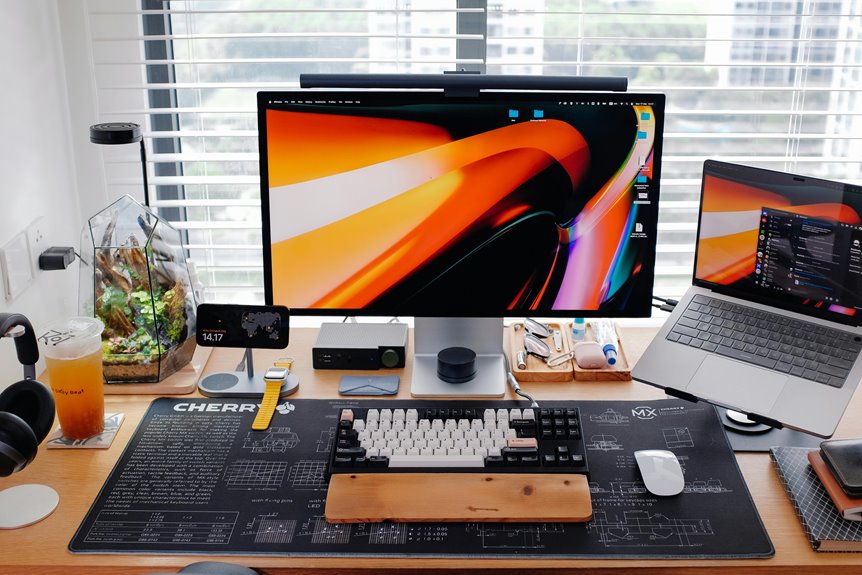
To ensure an ergonomic workspace with your trackball mouse, position it at elbow level, keeping your forearms parallel to the ground. Maintain a 90-degree angle at your elbows and ensure that your wrists are straight and relaxed. Your mouse should be within easy reach to avoid excessive arm extension. Remember to keep your shoulders relaxed and feet flat on the floor. If you want to discover more tips for a comfortable setup, just keep going!
Key Takeaways
- Ensure the trackball mouse is at elbow level, allowing forearms to remain parallel to the ground for optimal comfort and reduced strain.
- Position the mouse within easy reach to avoid excessive arm extension, promoting a relaxed posture.
- Maintain straight and relaxed wrists by keeping the trackball at the same height as the keyboard.
- Create a clutter-free workspace with enough space around the mouse to enhance focus and comfort.
- Regularly adjust your setup and take breaks to alleviate strain and maintain ergonomic health.
Understanding the Importance of Mouse Placement
When you consider how much time you spend using a trackball mouse, it's clear that proper placement is crucial for comfort and efficiency. A well-placed trackball can minimize strain on your wrist and arm, allowing you to work longer without discomfort.
Position the mouse at a height that keeps your elbow close to your body, promoting a relaxed posture. Ensure it's within easy reach so you don't have to stretch or twist your arm, which can lead to fatigue.
Additionally, consider the angle of your wrist; a neutral position prevents unnecessary tension. By optimizing the placement of your trackball mouse, you'll enhance your productivity while reducing the risk of repetitive strain injuries.
Finding the Right Height for Your Trackball Mouse
To find the right height for your trackball mouse, start by considering your desk height.
Your arms should rest comfortably at your sides, with your elbows at about a 90-degree angle when using the mouse.
Adjusting your setup can help reduce strain and improve your overall comfort while working.
Ideal Desk Height
Finding the ideal desk height for your trackball mouse can significantly enhance your comfort and efficiency while working.
Ideally, your desk should allow your elbows to rest at a 90-degree angle when your hands are on the mouse. This position helps prevent strain in your wrists and arms, promoting a more relaxed posture.
If your desk is too high, you might find yourself raising your shoulders, which can lead to tension. Conversely, a desk that's too low can cause you to hunch over, resulting in back pain.
To find the perfect height, sit comfortably in your chair and adjust your desk until your forearms are parallel to the ground. Test it out to ensure that it feels right for you!
Arm Positioning Techniques
Proper arm positioning is key to maximizing your trackball mouse experience. Start by ensuring your elbows are at a 90-degree angle or slightly obtuse when using the mouse. This helps reduce strain on your wrists and shoulders.
Keep your forearms parallel to the ground, allowing your hands to rest comfortably on the mouse. Adjust your chair height so your trackball mouse sits directly in front of you, which minimizes reaching and promotes a natural posture.
If possible, use a wrist rest to maintain a neutral wrist position. Remember to take breaks and stretch regularly to relieve any tension that might build up.
Finding the right height and positioning will enhance comfort and productivity while using your trackball mouse.
Positioning Your Trackball Mouse for Optimal Reach
To get the most out of your trackball mouse, you need the right height alignment for your setup.
Make sure your arm is comfortable and relaxed while reaching for the buttons, so you can work efficiently.
A well-placed mouse can make all the difference in your overall experience.
Ideal Height Alignment
Achieving the right height alignment for your trackball mouse can make a significant difference in your comfort and efficiency during use.
When positioning your mouse, consider these three key factors:
- Elbow Height: Your elbows should be at a 90-degree angle or slightly obtuse. This ensures minimal strain on your arms.
- Mouse Height: The trackball should be level with your elbows. This prevents reaching up or down, promoting a more natural wrist position.
- Surface Stability: Ensure the surface under your mouse is stable and at the correct height. A sturdy desk or table can help maintain the right alignment throughout your work session.
Comfortable Arm Position
While you mightn't realize it, the position of your arms plays a crucial role in how effectively you use your trackball mouse. To achieve a comfortable arm position, keep your elbows close to your body, forming a 90-degree angle. This helps reduce strain on your muscles and joints.
Place your trackball mouse at a height that allows your wrists to remain straight and relaxed. Avoid reaching too far; instead, position the mouse within easy reach, so you don't have to extend your arm excessively. You should also consider using a supportive wrist rest to enhance comfort.
Accessible Button Layout
An accessible button layout is essential for maximizing the efficiency of your trackball mouse. When you position your mouse, ensure that the buttons are within easy reach. This setup not only enhances your workflow but also reduces strain on your hands and fingers.
Here are three tips to achieve an optimal button layout:
- Prioritize Frequently Used Buttons: Place the buttons you use most often within easy access to your fingers.
- Utilize Customization Options: If your trackball mouse allows it, customize button functions to suit your specific tasks.
- Experiment with Angles: Adjust the angle of your trackball mouse for comfortable access to all buttons.
Ensuring Proper Wrist Alignment
Proper wrist alignment is crucial for comfortable and efficient use of a trackball mouse. To achieve this, make sure your wrist is straight and relaxed while you work. Avoid bending or twisting your wrist, as this can lead to discomfort or strain.
Position the trackball mouse at the same level as your keyboard to minimize wrist movement. Keep your forearm parallel to the ground, and let your hand rest naturally on the device. You might also consider using a wrist rest to support your wrist and maintain proper alignment.
Regularly check your posture and adjust your setup as needed to ensure you're not compromising your wrist health. Prioritizing this alignment will enhance your overall comfort and productivity.
Creating a Comfortable Angle for Your Arm
To ensure a comfortable angle for your arm while using a trackball mouse, position the device so your elbow is at about a 90-degree angle. This setup helps reduce strain and promotes better posture.
Here are three tips to achieve that ideal arm angle:
- Adjust your chair height: Make sure your chair supports your arms at the right level. Your forearms should be parallel to the ground.
- Position your trackball mouse close: Keep the mouse within easy reach to avoid extending your arm too far, which can lead to discomfort.
- Use a supportive surface: A soft, cushioned mouse pad can provide additional comfort and help maintain that proper angle throughout your workday.
Avoiding Common Placement Mistakes
While it might seem straightforward, trackball mouse placement can easily lead to discomfort if you overlook common mistakes.
One common error is placing the trackball too far away. Keep it within easy reach—ideally, right next to your keyboard. Also, avoid positioning it at an awkward angle; your wrist should stay straight to prevent strain.
Don't forget to ensure the trackball's height matches your elbow level. If it's too low or high, you'll likely experience discomfort over time.
Lastly, resist the temptation to clutter your workspace around the trackball. A clean surface allows for smoother movements and better control.
Adjusting Your Workspace for Long-term Comfort
Creating a workspace that promotes long-term comfort is essential for maximizing your productivity and well-being.
To ensure your trackball mouse setup contributes to your comfort, make the following adjustments:
- Positioning: Place your trackball mouse at elbow height to minimize strain. Your forearm should be parallel to the floor.
- Seating: Use a chair that supports your lower back, allowing your feet to rest flat on the ground. This promotes good posture.
- Screen Height: Position your monitor so the top of the screen is at or slightly below eye level. This reduces neck strain and encourages a natural posture.
Frequently Asked Questions
Can I Use a Trackball Mouse With My Left Hand?
Absolutely, you can use a trackball mouse with your left hand! Many models are designed for ambidextrous use, so you'll find one that feels comfortable. Just adjust your grip and practice for better control.
How Often Should I Take Breaks While Using a Trackball Mouse?
You should take breaks every 30 to 60 minutes while using a trackball mouse. Stand up, stretch, and give your eyes a rest. This'll help prevent strain and keep you feeling refreshed throughout your work session.
Are There Specific Exercises for Trackball Mouse Users?
Yes, there are specific exercises for you as a trackball mouse user. Try wrist stretches, finger flexes, and shoulder rolls to relieve tension and improve circulation. Regular movement helps maintain comfort and prevent strain.
What Type of Desk Surface Is Best for a Trackball Mouse?
A smooth, flat desk surface works best for your trackball mouse. It allows for easy movement and precise control. Ensure the surface is stable, so you can maintain comfort and efficiency during long hours of use.
Can a Trackball Mouse Help With Carpal Tunnel Syndrome?
Yes, a trackball mouse can help reduce strain on your wrist and fingers, potentially alleviating symptoms of carpal tunnel syndrome. It allows you to navigate without moving your arm, promoting a more comfortable posture while working.