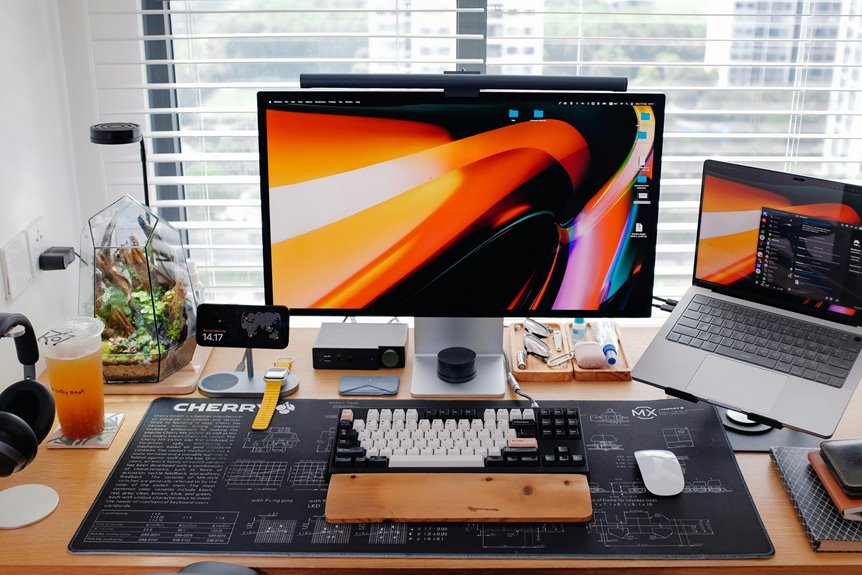
Transitioning from a regular mouse to a trackball can enhance your precision and reduce wrist strain. Start by choosing a comfortable trackball that fits your hand and suits your needs. Adjust your workspace to keep the trackball level with your elbow for optimal use. Practice finger movement for smooth navigation and customize settings for efficiency, like pointer speed and button assignments. With a bit of practice, you'll discover their benefits and how to maintain one effectively.
Key Takeaways
- Start by familiarizing yourself with the trackball's movement; practice rolling the ball with a relaxed hand for better control.
- Adjust your workspace to ensure the trackball is at elbow height and maintains a neutral wrist position for comfort.
- Customize button configurations and pointer speed to replicate your previous mouse settings, enhancing your transition experience.
- Incorporate keyboard shortcuts into your workflow to minimize reliance on mouse movements during tasks.
- Be patient and give yourself time to adapt; take regular breaks to avoid strain as you learn the new navigation style.
Understanding the Trackball Mechanism
The trackball mechanism operates on a simple yet efficient principle: instead of moving the entire device, you roll a stationary ball with your fingers to control the cursor. This design allows for precise navigation without requiring you to shift your hand position frequently.
You'll find that using a trackball can reduce wrist strain since your hand stays in a more natural position. Additionally, trackballs often come with customizable buttons, letting you assign functions that suit your workflow.
As you get used to the device, you'll appreciate the smooth control it provides, especially in tasks like graphic design or gaming. Overall, the trackball offers a unique alternative that can enhance your computing experience when you adapt to its use.
Choosing the Right Trackball for Your Needs
When selecting a trackball, it's essential to consider your specific needs and preferences.
Think about your intended use: are you gaming, designing, or just browsing? Different trackballs cater to different activities. Look for the size and shape that feels comfortable in your hand; a larger ball might suit your palm better, while a compact design could be ideal for portability.
Next, check the button configuration. Some trackballs offer customizable buttons, which can enhance your workflow.
Don't forget about connectivity options—wired or wireless, depending on your setup. Lastly, consider the brand and reviews; a well-reviewed model can make a significant difference in your experience.
Take your time to choose wisely, and you'll enjoy a smoother transition.
Adjusting Your Workspace for Trackball Use
To make the most of your trackball mouse, adjusting your workspace is crucial. Start by positioning your trackball at a comfortable height. Ideally, it should be level with your elbow to reduce strain.
Ensure your wrist is neutral; using a wrist pad can help maintain proper alignment. Clear the area around your trackball to allow easy movement of your fingers. If you have a large desk, consider placing the trackball closer to your keyboard.
You might also want to experiment with different surfaces; a smooth, stable surface can enhance precision. Finally, ensure adequate lighting to avoid eye strain while you work.
Making these adjustments will help you enjoy a more ergonomic and efficient experience with your new trackball.
Practicing Trackball Navigation Techniques
As you start using your trackball mouse, mastering navigation techniques can significantly enhance your efficiency.
Begin by familiarizing yourself with the ball's movement. Practice rolling the ball with your fingers, keeping your hand relaxed. This helps reduce fatigue and improves control. To select items, experiment with different finger positions to find what feels most comfortable.
Next, practice scrolling by using the ball to navigate up and down web pages or documents. Incorporate keyboard shortcuts to complement your trackball use, helping you move quickly through tasks.
Finally, take breaks to avoid strain and give your hand a chance to rest. With time and practice, you'll develop muscle memory, making your trackball navigation smooth and intuitive.
Customizing Trackball Settings for Efficiency
How can you make your trackball mouse work even better for you? Customizing its settings can boost your efficiency significantly.
Start by adjusting the pointer speed to match your preferences; a faster speed can enhance your workflow. Next, consider reassigning buttons for quick access to frequently used functions. This can save you time and effort during tasks.
Here are some key customization tips:
- Pointer Acceleration: Fine-tune the acceleration to improve precision during slow movements.
- Scroll Wheel Settings: Adjust the scroll speed for smoother navigation through documents or web pages.
- Button Functions: Assign shortcuts for specific tasks, like copy or paste, to streamline your workflow.
With these adjustments, you'll maximize your trackball's potential!
Maintaining Your Trackball for Longevity
While you might enjoy the precision of your trackball mouse, keeping it well-maintained is essential for its longevity and performance.
Start by regularly cleaning the trackball and the surrounding area. Remove the ball and wipe it with a soft cloth and mild cleaner to eliminate dirt and grime.
Don't forget to clean the rollers inside the housing, as dust can hinder movement. Also, check for any loose connections or frayed cables to ensure everything works smoothly.
If your trackball has customizable features, update the software to benefit from the latest enhancements.
Lastly, store your trackball in a dust-free environment when not in use, protecting it from wear and tear.
With these simple steps, your trackball will serve you well for years to come.
Frequently Asked Questions
Can I Use a Trackball With Gaming Applications?
Yes, you can use a trackball for gaming applications. Many gamers find it enhances precision and control. Just give it a try, and see how it feels during your gaming sessions. You might love it!
How Long Does It Take to Get Used to a Trackball?
It usually takes a few days to a couple of weeks to get used to a trackball. You'll find your rhythm as you practice, so don't get discouraged—keep experimenting for optimal comfort and efficiency.
Are There Ergonomic Benefits to Using a Trackball?
Yes, there're ergonomic benefits to using a trackball. You reduce wrist strain and maintain a more natural hand position. It can help prevent repetitive stress injuries, making it a great choice for extended use.
Is a Trackball Suitable for Left-Handed Users?
Absolutely, a trackball can be suitable for left-handed users. Many models offer ambidextrous designs, allowing you to customize your setup. You'll find it comfortable and efficient, enhancing your overall computing experience.
What Are Common Trackball Brands to Consider?
When considering trackball brands, you should look at Logitech, Microsoft, and Kensington. Each offers various models with unique features to suit your preferences. Testing a few will help you find the perfect fit.