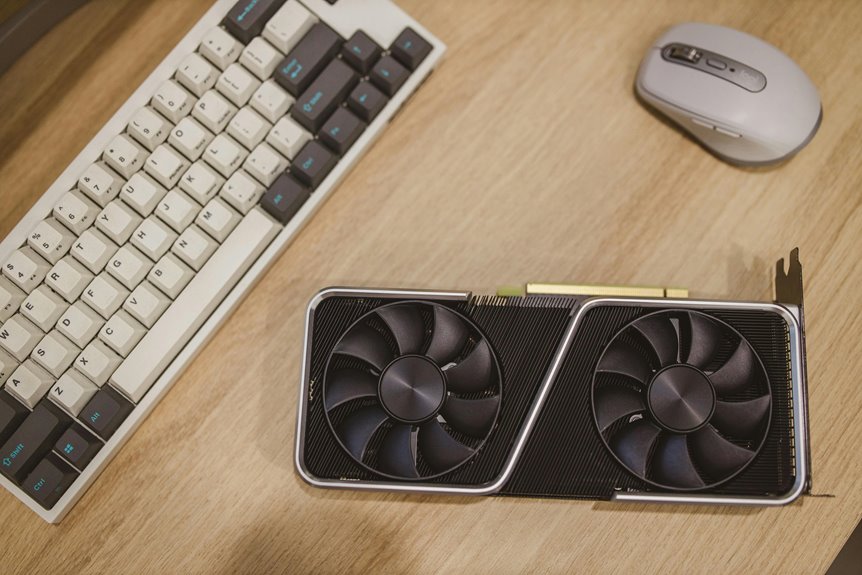
In a hot home office, your computer's performance can suffer without proper cooling solutions. Overheating can lead to slowdowns or even hardware failure, which isn't ideal for productivity. You might find that simple adjustments, like airflow optimization or using cooling pads, can make a significant difference. But what if you need more advanced options? Let's explore some strategies that could keep your setup running smoothly and efficiently.
Key Takeaways
- Utilize cooling pads with built-in fans to improve airflow and reduce heat buildup for laptops in hot office environments.
- Elevate laptops with stands to enhance ventilation and promote better posture, aiding in heat dissipation.
- Maintain a cool room temperature by using portable fans to circulate air around your computer setup.
- Regularly clean fans and vents to prevent dust accumulation, which can hinder airflow and cooling efficiency.
- Upgrade internal cooling systems by replacing thermal paste and ensuring fans operate at optimal speeds for effective heat management.
Understanding the Importance of Computer Cooling
When you think about your computer's performance, you can't overlook the role of cooling.
Effective cooling is crucial for maintaining optimal functionality and preventing overheating. When your machine runs too hot, it can lead to sluggish performance, unexpected shutdowns, and even hardware damage.
You might notice your fan working overtime or hear it whirring loudly—these are signs your computer is struggling to dissipate heat.
Optimizing Airflow in Your Workspace
To keep your computer cool, you need to optimize airflow in your workspace.
Start by positioning your equipment to allow for maximum ventilation, and consider using fans to enhance the cooling effect.
Small adjustments can make a big difference in maintaining an efficient and comfortable environment.
Positioning Your Equipment
Optimizing airflow in your workspace is crucial for maintaining the performance and longevity of your equipment.
To ensure effective cooling, consider the following positioning strategies:
- Keep your equipment elevated: Use stands or shelves to allow air circulation underneath.
- Avoid tight spaces: Position your devices away from walls or other obstructions that can trap heat.
- Create a clear path: Arrange cables and accessories neatly to prevent airflow blockages.
- Utilize open spaces: Ensure there's enough room around each device for optimal cooling, ideally a few inches on all sides.
Utilizing Fans Effectively
While you might think all cooling solutions rely on passive methods, strategically placing fans can significantly enhance airflow in your workspace. Start by positioning a fan near your computer to directly cool it down. This will help dissipate heat from the CPU and GPU, preventing overheating.
Next, consider using additional fans to create a cross-breeze; one fan can draw in cooler air, while another expels warm air. This circulation keeps the air fresh and lowers the overall temperature.
Don't forget to angle your fans toward hot spots, like your desk or electronics. Lastly, adjust the fan speed based on your needs; higher speeds work best when the heat is intense.
With these tips, you'll keep your workspace cool and comfortable.
Utilizing Cooling Pads and Stands
Cooling pads and stands are essential tools for enhancing your laptop's performance and longevity. When you work in a hot home office, these devices help maintain optimal temperatures, preventing overheating.
Here's how they can benefit you:
- Improved airflow: Cooling pads often feature built-in fans that circulate air around your laptop.
- Ergonomic positioning: Stands elevate your laptop, reducing neck strain and promoting better posture.
- Heat dissipation: Many cooling pads use materials designed to dissipate heat efficiently.
- Portability: Most cooling pads and stands are lightweight, making them easy to transport.
Upgrading Internal Cooling Systems
When it comes to upgrading your internal cooling system, start by assessing your current cooling efficiency.
You might want to consider installing high-performance fans and replacing old thermal paste for better heat transfer.
These upgrades can significantly enhance your system's overall performance and longevity.
Assessing Current Cooling Efficiency
As you evaluate your computer's performance, it's crucial to assess the efficiency of its cooling system. A well-functioning cooling system can significantly impact your machine's longevity and reliability.
Here are some key factors to consider:
- Temperature Monitoring: Check the CPU and GPU temperatures using software tools to identify overheating issues.
- Dust Accumulation: Inspect fans and vents for dust buildup, which can impede airflow and efficiency.
- Fan Speed: Ensure your fans are operating at optimal speeds; inadequate RPM can lead to overheating.
- Thermal Paste: Evaluate the condition of the thermal paste between your CPU/GPU and their coolers; replacing it can improve heat transfer.
Choosing High-Performance Fans
Improving your computer's cooling system often means upgrading to high-performance fans. These fans can significantly enhance airflow, helping to keep your components cool during long work sessions.
When choosing fans, look for models with a higher RPM (revolutions per minute) rating for better cooling efficiency. You'll also want to consider noise levels; quieter fans allow you to focus on your tasks without distractions.
Pay attention to the size and compatibility with your case—120mm and 140mm fans are common choices. Don't overlook static pressure if you're using radiators or filters, as fans designed for high static pressure perform better in those situations.
Ultimately, investing in quality fans can lead to improved performance and longevity for your system.
Upgrading Thermal Paste
While many overlook thermal paste, upgrading it can significantly enhance your CPU and GPU cooling efficiency. Over time, thermal paste can dry out and lose its effectiveness, causing your components to run hotter.
By replacing it, you'll improve heat transfer between your processor and cooler, which can lead to better performance and longevity.
Here are some tips for upgrading thermal paste:
- Choose high-quality thermal paste for optimal performance.
- Clean the old paste off the CPU and cooler with isopropyl alcohol.
- Apply a small, even amount of new paste—about the size of a pea.
- Reattach the cooler carefully, ensuring even pressure for the best contact.
With these steps, you'll keep your system running cooler and more efficiently.
Implementing External Cooling Solutions
When you notice your computer struggling with overheating, implementing external cooling solutions can make a world of difference. Consider using cooling pads, which elevate your laptop and provide airflow, or portable fans that direct cool air toward your setup. Another option is a dedicated external water cooling system for desktops, ensuring optimal temperatures even during demanding tasks.
Here's a quick comparison of popular options:
| Cooling Solution | Pros |
|---|---|
| Cooling Pads | Lightweight, portable |
| External Fans | Affordable, effective |
| Water Cooling Systems | Superior cooling, quieter |
Monitoring Temperature and Performance
After implementing external cooling solutions, it's important to keep an eye on your computer's temperature and performance.
Regular monitoring helps you ensure that your system runs efficiently and avoids overheating. Here are a few ways to keep track:
- Use software tools: Programs like HWMonitor or Core Temp provide real-time temperature readings.
- Check system logs: Many operating systems maintain logs that can help you identify any performance issues.
- Set alerts: Configure your software to notify you if temperatures exceed safe limits.
- Observe performance dips: If your computer starts lagging or crashing, it might be a sign of overheating.
Best Practices for Maintenance and Care
To keep your computer running smoothly, regular maintenance and care are essential. Start by dusting your computer components every few months to prevent overheating. Check your cooling fans for optimal performance and clean them if necessary. You should also ensure your software is up-to-date, as this can enhance system efficiency.
Here's a quick reference table to guide your maintenance routine:
| Task | Frequency | Impact |
|---|---|---|
| Dust Cleaning | Every 3 months | Reduces overheating risk |
| Fan Check | Monthly | Ensures optimal airflow |
| Software Updates | Monthly | Improves performance |
| Thermal Paste Change | Every 2 years | Enhances heat transfer |
Follow these practices to prolong your computer's lifespan and maintain peak performance.
Frequently Asked Questions
Can High Temperatures Damage My Computer's Hardware Permanently?
Yes, high temperatures can damage your computer's hardware permanently. When components overheat, they may suffer from reduced lifespan or failure. Keeping your system cool is essential to ensure optimal performance and longevity. Don't risk it!
Are There Specific Temperature Thresholds for Different Computer Components?
Yes, different components have specific temperature thresholds. For instance, CPUs typically shouldn't exceed 80°C, while GPUs can handle up to 90°C. Keeping them cool ensures their longevity and performance, so monitor those temperatures closely.
How Often Should I Clean My Computer's Cooling System?
You should clean your computer's cooling system every three to six months. Dust buildup can hinder performance and increase temperatures, so regular maintenance keeps everything running smoothly and prolongs the life of your components.
Do Laptop Cooling Pads Work for All Laptop Models?
Laptop cooling pads can be effective for many models, but their compatibility varies. You should check your laptop's dimensions and design to ensure the cooling pad fits properly and provides optimal airflow for your device.
What Are the Signs of Overheating in a Computer?
You'll notice signs of overheating in your computer when it becomes unusually hot, makes loud fan noises, or unexpectedly shuts down. Additionally, sluggish performance and graphical glitches can indicate that your system's running too hot.